

Windows 11 Home and Windows 10 Home don’t come with the Group Policy Editor, and even when you add it, the policies you set in it don’t take effect. But many of those policies still work on Home once their registry value is in place. This tool shows which ones, tested on real installs of Windows Home, and gives you the file to apply each one.
Of 22 policies tested so far, 14 of 20 work on Windows 11 Home 26H2, 13 of 21 on Windows 11 Home 25H2 and 13 of 19 on Windows 10 Home 22H2. The rest are ignored or only partly applied; for those, the tool shows what works instead.
Which policies work on Windows Home?
Search a setting. Each result shows whether Windows Home obeys it, and gives you a .reg file, an undo file and the PowerShell command.
Prevent access to the command prompt
- Windows 11 Home 25H2 Works
- Windows 11 Home 26H2 Works
- Windows 10 Home 22H2 Works
- Windows 11 Home 25H2: "The command prompt has been disabled by your administrator."
- Windows 11 Home 26H2: "The command prompt has been disabled by your administrator."
- Windows 10 Home 22H2: "The command prompt has been disabled by your administrator."
Apply it
gpedit / Policy Plus User Configuration > Administrative Templates > System > Prevent access to the command prompt
Registry HKCU\Software\Policies\Microsoft\Windows\System, DisableCMD = REG_DWORD 2 (1 = also block .bat/.cmd scripts, 2 = allow scripts)
PowerShell:
Remove Run menu from Start Menu
- Windows 11 Home 25H2 Works
- Windows 11 Home 26H2 Works
- Windows 10 Home 22H2 Works
- Windows 11 Home 25H2: Run dialog: "This operation has been cancelled due to restrictions in effect on this computer."
- Windows 11 Home 26H2: Run shows "This operation has been cancelled due to restrictions in effect on this computer."
- Windows 10 Home 22H2: Run dialog: "cancelled due to restrictions".
Apply it
gpedit / Policy Plus User Configuration > Administrative Templates > Start Menu and Taskbar > Remove Run menu from Start Menu
Registry HKCU\Software\Microsoft\Windows\CurrentVersion\Policies\Explorer, NoRun = REG_DWORD 1
PowerShell:
Allow widgets: Disabled
- Windows 11 Home 25H2 Works
- Windows 11 Home 26H2 Works
- Windows 10 Home 22H2 Not in this version
- Windows 11 Home 25H2: Widgets/weather button gone from the taskbar after sign-in.
- Windows 11 Home 26H2: No Widgets button on the taskbar.
- Windows 10 Home 22H2: Windows 10 has News and interests, not Widgets; the weather button stays. Use the Windows 10 policy 'Enable news and interests on the taskbar' (Windows Feeds\EnableFeeds=0) instead.
Apply it
gpedit / Policy Plus Computer Configuration > Administrative Templates > Windows Components > Widgets > Allow widgets
Registry HKLM\Software\Policies\Microsoft\Dsh, AllowNewsAndInterests = REG_DWORD 0
PowerShell (as administrator):
Turn off display of recent search entries in the File Explorer search box
- Windows 11 Home 25H2 Works
- Windows 11 Home 26H2 Works
- Windows 10 Home 22H2 Works
- Windows 11 Home 25H2: Start search no longer shows "Search the web" results or the Web tab, and the search highlight is gone. Before: web suggestions for "weather"; after: only the Weather app.
- Windows 11 Home 26H2: Start search shows only local results (no "Search the web" or Web tab).
- Windows 10 Home 22H2: Search highlight gone, and Start search no longer shows "Search the web" results or the Web tab.
Apply it
gpedit / Policy Plus User Configuration > Administrative Templates > Windows Components > File Explorer > Turn off display of recent search entries in the File Explorer search box
Registry HKCU\Software\Policies\Microsoft\Windows\Explorer, DisableSearchBoxSuggestions = REG_DWORD 1
PowerShell:
Prevent the usage of OneDrive for file storage
- Windows 11 Home 25H2 Works
- Windows 11 Home 26H2 Works
- Windows 10 Home 22H2 Works
- Windows 11 Home 25H2: OneDrive no longer starts at sign-in (tray icon gone).
- Windows 11 Home 26H2: OneDrive.exe exits immediately; no OneDrive icon or sign-in.
- Windows 10 Home 22H2: OneDrive does not start at sign-in.
Apply it
gpedit / Policy Plus Computer Configuration > Administrative Templates > Windows Components > OneDrive > Prevent the usage of OneDrive for file storage
Registry HKLM\Software\Policies\Microsoft\Windows\OneDrive, DisableFileSyncNGSC = REG_DWORD 1
PowerShell (as administrator):
Do not display the lock screen
- Windows 11 Home 25H2 Works
- Windows 11 Home 26H2 Works
- Windows 10 Home 22H2 Works
- Windows 11 Home 25H2: Locking goes straight to the password box; without the value the normal clock/Spotlight lock screen shows. Works on Home despite the documentation.
- Windows 11 Home 26H2: Locking goes straight to the password box.
- Windows 10 Home 22H2: Locking goes straight to the password box.
Microsoft documents this policy for: Enterprise, Education (per Microsoft)
Apply it
gpedit / Policy Plus Computer Configuration > Administrative Templates > Control Panel > Personalization > Do not display the lock screen
Registry HKLM\Software\Policies\Microsoft\Windows\Personalization, NoLockScreen = REG_DWORD 1
PowerShell (as administrator):
Configure Automatic Updates: Disabled
- Windows 11 Home 25H2 Ignored
- Windows 11 Home 26H2 Ignored
- Windows 10 Home 22H2 Ignored
- Windows 11 Home 25H2: Value present, but Settings shows no managed notice and Windows Update agent reports NotificationLevel 4 (automatic), ReadOnly False.
- Windows 11 Home 26H2: No managed notice in Windows Update; updates still automatic.
- Windows 10 Home 22H2: Windows Update agent NotificationLevel 4 (automatic), ReadOnly False.
Works instead: Pause updates in Settings > Windows Update (up to 5 weeks), or set the connection as metered.
Microsoft documents this policy for: Pro and above (Update CSP)
Apply it
gpedit / Policy Plus Computer Configuration > Administrative Templates > Windows Components > Windows Update > Manage end user experience > Configure Automatic Updates
Registry HKLM\Software\Policies\Microsoft\Windows\WindowsUpdate\AU, NoAutoUpdate = REG_DWORD 1
PowerShell (as administrator):
No auto-restart with logged on users for scheduled automatic updates installations
- Windows 11 Home 25H2 Ignored
- Windows 11 Home 26H2 Ignored
- Windows 10 Home 22H2 Not tested yet
- Windows 11 Home 25H2: Value in place after a restart, but Windows Update > Advanced options > Configured update policies says "No policies have been configured yet".
- Windows 11 Home 26H2: Windows Update > Advanced options > Configured update policies lists "No policies have been configured yet" with the value in place.
Works instead: Set active hours in Settings > Windows Update > Advanced options.
Apply it
gpedit / Policy Plus Computer Configuration > Administrative Templates > Windows Components > Windows Update > Manage end user experience > No auto-restart with logged on users...
Registry HKLM\Software\Policies\Microsoft\Windows\WindowsUpdate\AU, NoAutoRebootWithLoggedOnUsers = REG_DWORD 1
PowerShell (as administrator):
Allow Diagnostic Data: Diagnostic data off
- Windows 11 Home 25H2 Limited
- Windows 11 Home 26H2 Limited
- Windows 10 Home 22H2 Limited
- Windows 11 Home 25H2: Settings: "Your organization prevents sending diagnostic data" yet "You're sending required diagnostic data". Home treats 0 as Required.
- Windows 11 Home 26H2: Shows "Your organization prevents sending diagnostic data", but Windows still sends required diagnostic data.
- Windows 10 Home 22H2: Settings: 'Required diagnostic data' selected and greyed out, 'managed by your organization'.
Works instead: Turn off optional diagnostic data in Settings > Privacy & security > Diagnostics & feedback.
Microsoft documents this policy for: Value 0 only on Enterprise, Education, Server (per Microsoft)
Apply it
gpedit / Policy Plus Computer Configuration > Administrative Templates > Windows Components > Data Collection and Preview Builds > Allow Diagnostic Data
Registry HKLM\Software\Policies\Microsoft\Windows\DataCollection, AllowTelemetry = REG_DWORD 0
PowerShell (as administrator):
Turn off Microsoft consumer experiences
- Windows 11 Home 25H2 Ignored
- Windows 11 Home 26H2 Not tested yet
- Windows 10 Home 22H2 Ignored
- Windows 11 Home 25H2: A brand-new account created with the value set still gets promoted pins in Start (WhatsApp, LinkedIn, Adobe Express, Solitaire).
- Windows 10 Home 22H2: A brand-new account created with the value set still gets the promoted Start tiles (LinkedIn, Solitaire, "Play" games folder), same as without it.
Works instead: Uninstall or unpin the promoted apps from Start; turn off Settings > Personalization > Start > "Show recommendations for tips, shortcuts, new apps, and more".
Microsoft documents this policy for: Enterprise, Education (per Microsoft)
Apply it
gpedit / Policy Plus Computer Configuration > Administrative Templates > Windows Components > Cloud Content > Turn off Microsoft consumer experiences
Registry HKLM\Software\Policies\Microsoft\Windows\CloudContent, DisableWindowsConsumerFeatures = REG_DWORD 1
PowerShell (as administrator):
Enable news and interests on the taskbar: Disabled (Windows 10)
- Windows 11 Home 25H2 Not in this version
- Windows 11 Home 26H2 Not in this version
- Windows 10 Home 22H2 Works
- Windows 11 Home 25H2: Windows 11 has Widgets instead; use the Widgets policy.
- Windows 11 Home 26H2: Windows 11 has Widgets instead; use the Widgets policy.
- Windows 10 Home 22H2: The weather/news button disappears from the taskbar after a restart.
Apply it
gpedit / Policy Plus Computer Configuration > Administrative Templates > Windows Components > News and interests > Enable news and interests on the taskbar
Registry HKLM\Software\Policies\Microsoft\Windows\Windows Feeds, EnableFeeds = REG_DWORD 0
PowerShell (as administrator):
Remove Task Manager
- Windows 11 Home 25H2 Works
- Windows 11 Home 26H2 Works
- Windows 10 Home 22H2 Works
- Windows 11 Home 25H2: "Task Manager has been disabled by your administrator."
- Windows 11 Home 26H2: "Task Manager has been disabled by your administrator."
- Windows 10 Home 22H2: "Task Manager has been disabled by your administrator."
Apply it
gpedit / Policy Plus User Configuration > Administrative Templates > System > Ctrl+Alt+Del Options > Remove Task Manager
Registry HKCU\Software\Microsoft\Windows\CurrentVersion\Policies\System, DisableTaskMgr = REG_DWORD 1
PowerShell:
Prohibit access to Control Panel and PC settings
- Windows 11 Home 25H2 Works
- Windows 11 Home 26H2 Works
- Windows 10 Home 22H2 Works
- Windows 11 Home 25H2: Control Panel: "This operation has been cancelled due to restrictions in effect on this computer." Settings: "The app didn't start."
- Windows 11 Home 26H2: Control Panel shows the restrictions message.
- Windows 10 Home 22H2: Control Panel shows the restrictions message; Settings: "The app didn't start."
Apply it
gpedit / Policy Plus User Configuration > Administrative Templates > Control Panel > Prohibit access to Control Panel and PC settings
Registry HKCU\Software\Microsoft\Windows\CurrentVersion\Policies\Explorer, NoControlPanel = REG_DWORD 1
PowerShell:
Turn off the Store application
- Windows 11 Home 25H2 Ignored
- Windows 11 Home 26H2 Ignored
- Windows 10 Home 22H2 Ignored
- Windows 11 Home 25H2: Value present after a restart; Microsoft Store opens and works normally.
- Windows 11 Home 26H2: Microsoft Store opens normally.
- Windows 10 Home 22H2: Value present after a restart; Microsoft Store still opens.
Works instead: Uninstall the Store for your account in PowerShell (Get-AppxPackage Microsoft.WindowsStore | Remove-AppxPackage); reinstalling it later needs wsreset -i.
Microsoft documents this policy for: Enterprise, Education (per Microsoft)
Apply it
gpedit / Policy Plus Computer Configuration > Administrative Templates > Windows Components > Store > Turn off the Store application
Registry HKLM\Software\Policies\Microsoft\WindowsStore, RemoveWindowsStore = REG_DWORD 1
PowerShell (as administrator):
Turn off all Windows spotlight features
- Windows 11 Home 25H2 Ignored
- Windows 11 Home 26H2 Ignored
- Windows 10 Home 22H2 Ignored
- Windows 11 Home 25H2: Lock screen stays on Windows spotlight and keeps downloading new Spotlight pictures.
- Windows 11 Home 26H2: Lock screen stays on Windows spotlight.
- Windows 10 Home 22H2: Lock screen background stays on Windows spotlight.
Works instead: Settings > Personalization > Lock screen: choose Picture or Slideshow instead of Windows spotlight.
Microsoft documents this policy for: Enterprise, Education (per Microsoft)
Apply it
gpedit / Policy Plus User Configuration > Administrative Templates > Windows Components > Cloud Content > Turn off all Windows spotlight features
Registry HKCU\Software\Policies\Microsoft\Windows\CloudContent, DisableWindowsSpotlightFeatures = REG_DWORD 1
PowerShell:
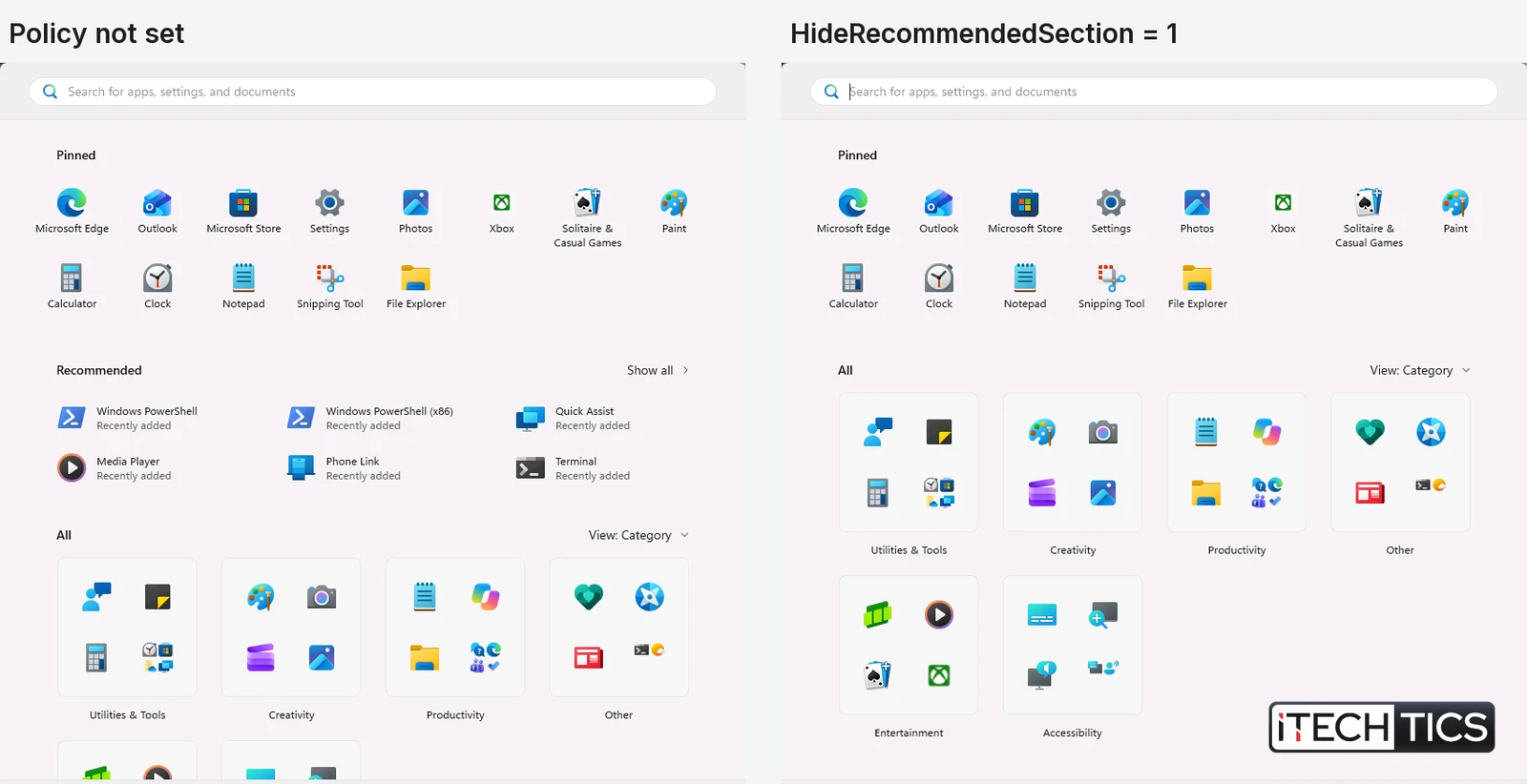
Remove Recommended section from Start Menu
- Windows 11 Home 25H2 Ignored
- Windows 11 Home 26H2 Works
- Windows 10 Home 22H2 Not in this version
- Windows 11 Home 25H2: Value present after a restart; Start still shows the Recommended section.
- Windows 11 Home 26H2: New 26H2 Start: the Recommended section is gone with the value set and comes back when it is removed. (Ignored on 25H2.)
- Windows 10 Home 22H2: Windows 10 Start has no Recommended section.
Works instead: Settings > Personalization > Start: turn off "Show recently added apps", "Show recommended files..." and "Show recommendations for tips...". The heading stays but the list empties.
Microsoft documents this policy for: Windows 11 Education and SE (per Microsoft)
Apply it
gpedit / Policy Plus Computer Configuration > Administrative Templates > Start Menu and Taskbar > Remove Recommended section from Start Menu
Registry HKLM\Software\Policies\Microsoft\Windows\Explorer, HideRecommendedSection = REG_DWORD 1
PowerShell (as administrator):
Turn off Windows Copilot
- Windows 11 Home 25H2 Ignored
- Windows 11 Home 26H2 Ignored
- Windows 10 Home 22H2 Ignored
- Windows 11 Home 25H2: The Copilot app still opens (and updates itself). This policy only controlled the old Copilot sidebar.
- Windows 11 Home 26H2: The Copilot app still opens.
- Windows 10 Home 22H2: The Copilot taskbar button still opens the Copilot app.
Works instead: Uninstall the Copilot app: Settings > Apps > Installed apps > Copilot > Uninstall.
Apply it
gpedit / Policy Plus User Configuration > Administrative Templates > Windows Components > Windows Copilot > Turn off Windows Copilot
Registry HKCU\Software\Policies\Microsoft\Windows\WindowsCopilot, TurnOffWindowsCopilot = REG_DWORD 1
PowerShell:
Microsoft Edge: Show Hubs Sidebar (Disabled)
- Windows 11 Home 25H2 Works
- Windows 11 Home 26H2 Works
- Windows 10 Home 22H2 Works
- Windows 11 Home 25H2: edge://policy status OK; with it, Edge 140 shows no Copilot/sidebar button. Edge 158 keeps a Copilot "Chat" button; use the Copilot Chat button policy for that.
- Windows 11 Home 26H2: edge://policy status OK.
- Windows 10 Home 22H2: edge://policy shows status OK. In Edge 158 the Copilot "Chat" button stays; use the Copilot Chat icon policy below for that.
Apply it
gpedit / Policy Plus Computer Configuration > Administrative Templates > Microsoft Edge > Show Hubs Sidebar (needs the Microsoft Edge policy templates)
Registry HKLM\Software\Policies\Microsoft\Edge, HubsSidebarEnabled = REG_DWORD 0
PowerShell (as administrator):
Microsoft Edge: hide the Copilot Chat button
- Windows 11 Home 25H2 Works
- Windows 11 Home 26H2 Works
- Windows 10 Home 22H2 Works
- Windows 11 Home 25H2: Edge 140: edge://policy status OK and the Copilot button is gone from the toolbar (it shows without the policy).
- Windows 11 Home 26H2: edge://policy status OK; no Copilot button in the toolbar.
- Windows 10 Home 22H2: edge://policy status OK and the Copilot "Chat" button is gone from the Edge 158 toolbar.
Apply it
gpedit / Policy Plus Computer Configuration > Administrative Templates > Microsoft Edge > Microsoft365CopilotChatIconEnabled (needs the Microsoft Edge policy templates)
Registry HKLM\Software\Policies\Microsoft\Edge, Microsoft365CopilotChatIconEnabled = REG_DWORD 0
PowerShell (as administrator):
Microsoft Edge: Hide the First-run experience and splash screen
- Windows 11 Home 25H2 Works
- Windows 11 Home 26H2 Works
- Windows 10 Home 22H2 Works
- Windows 11 Home 25H2: First Edge launch went straight to the page with no setup screens; edge://policy status OK.
- Windows 11 Home 26H2: edge://policy status OK.
- Windows 10 Home 22H2: edge://policy status OK.
Apply it
gpedit / Policy Plus Computer Configuration > Administrative Templates > Microsoft Edge > Hide the First-run experience and splash screen (needs the Microsoft Edge policy templates)
Registry HKLM\Software\Policies\Microsoft\Edge, HideFirstRunExperience = REG_DWORD 1
PowerShell (as administrator):
Turn off toast notifications
- Windows 11 Home 25H2 Works
- Windows 11 Home 26H2 Works
- Windows 10 Home 22H2 Works
- Windows 11 Home 25H2: Settings > Notifications: switched Off and greyed out, "Some of these settings are managed by your organization."
- Windows 11 Home 26H2: Notifications switched off and greyed out, "managed by your organization".
- Windows 10 Home 22H2: Notifications switched Off and greyed out, "managed by your organization".
Apply it
gpedit / Policy Plus User Configuration > Administrative Templates > Start Menu and Taskbar > Notifications > Turn off toast notifications
Registry HKCU\Software\Policies\Microsoft\Windows\CurrentVersion\PushNotifications, NoToastApplicationNotification = REG_DWORD 1
PowerShell:
Windows Game Recording and Broadcasting: Disabled
- Windows 11 Home 25H2 Works
- Windows 11 Home 26H2 Works
- Windows 10 Home 22H2 Works
- Windows 11 Home 25H2: Settings > Gaming > Captures: the Recording preferences section is gone.
- Windows 11 Home 26H2: Captures: the Recording preferences section is empty.
- Windows 10 Home 22H2: Settings > Gaming > Captures: background recording and audio options are gone.
Apply it
gpedit / Policy Plus Computer Configuration > Administrative Templates > Windows Components > Windows Game Recording and Broadcasting > Enables or disables Windows Game Recording and Broadcasting
Registry HKLM\Software\Policies\Microsoft\Windows\GameDVR, AllowGameDVR = REG_DWORD 0
PowerShell (as administrator):
Showing 22 of 22 policies
How each policy is tested
I install Windows 11 Home and Windows 10 Home from Microsoft’s ISO in Hyper-V virtual machines, with all updates. For each policy I:
- apply the registry value with Policy Plus (the same value the .reg file sets);
- restart and sign in again;
- check what actually changed on screen, for example whether Command Prompt is blocked or the Widgets button is gone.
A policy is marked Works only when I saw the effect. Ignored means the value was in place but Windows behaved as before. Limited means Windows applied a weaker version (for example, diagnostic data “off” becomes “Required” on Home). Not tested yet means I haven’t verified it; the files are there for Pro users and for anyone who wants to try.
Results are for the builds listed under the tool. A later Windows update can change them, so I retest when a new version comes out.
How to apply a .reg file safely
- Open the policy and click Download .reg (and Undo .reg, so you can reverse it later).
- Right-click the file and choose Edit to see exactly what it changes. Each file sets a single registry value.
- Double-click the file, click Yes in User Account Control and Yes to add it to the registry.
- Restart, or sign out and in again, so Windows reads the new value.
To reverse it, double-click the Undo .reg file. It deletes the value, which is the same as setting the policy to “Not Configured”.
Policies under HKEY_CURRENT_USER apply only to the account you’re signed in with. If several people use the PC, apply the file once in each account.
Why not just use gpedit.msc on Home?
You can install gpedit.msc on Windows Home in about a minute, but on Home it only saves your settings to a file and never applies them. In my tests 0 of 10 policies set in gpedit took effect, even after gpupdate /force and a restart, while the same test on Windows 11 Pro applied all 10. A .reg file, PowerShell or Policy Plus writes the value directly, which is why they work.
FAQ
Is it safe to apply these files? Each file sets one documented policy value under HKEY_LOCAL_MACHINE\Software\Policies or a similar policy key, and each has an undo file. Create a restore point first if you want an extra safety net.
Will these work on Windows 11 Pro? Yes. Pro applies Group Policy normally, so every policy here works on Pro, including the ones Home ignores.
Can you test a policy I need? Yes. Leave a comment with the policy name, and I’ll add it to the next test round.