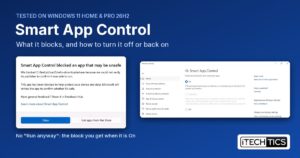

Smart App Control is the Windows 11 feature behind messages like “Smart App Control blocked an app that may be unsafe”. It stops programs that Microsoft can’t vouch for from running at all, which is great against malware and frustrating when the blocked program is a game, a plugin or a tool you trust.
Until spring 2026, turning it off was a one-way trip: you had to reinstall Windows to get it back. That’s no longer true, but most guides and forum answers still say it is. I tested Smart App Control in November 2026 on fresh installs of Windows 11 Home and Pro 26H2: what it blocks and what it lets through, how to turn it off, how to turn it back on, and what to do when it blocks something you need.
What Smart App Control does (and doesn’t)
When you start a program, Smart App Control first asks Microsoft’s cloud reputation service whether it’s safe. If the service is confident, the program runs (or is blocked, if it’s known to be malicious). If the service doesn’t know the program, Smart App Control checks its digital signature. No valid signature from a trusted publisher means the program is blocked. That’s how Microsoft describes it, and it’s what I saw.
It also blocks script-type files downloaded from the internet, such as .bat, .cmd, .js, .vbs and .ps1, when you open them (Microsoft’s list).
What it isn’t:
- It isn’t an antivirus. Microsoft Defender (or your other antivirus) still scans files. Smart App Control only decides whether a program may start.
- It isn’t SmartScreen. SmartScreen shows “Windows protected your PC” with a Run anyway link. Smart App Control has no such link.
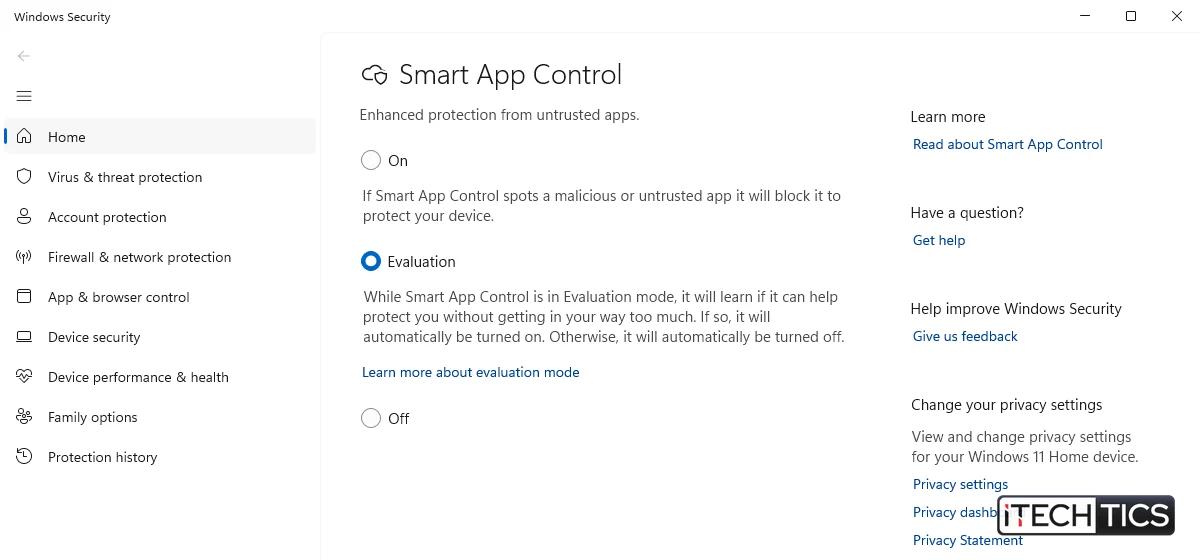
It has three modes, set in Windows Security > App & browser control > Smart App Control settings:
| Mode | What it does |
|---|---|
| Evaluation | Default on a clean install. Watches how you use the PC and blocks nothing. At the end, Windows switches it On or Off for you. |
| On | Blocks untrusted programs and downloaded script files. |
| Off | Does nothing. |
What it blocked in my tests
I built a small unsigned test program on each PC and tried it, and a few downloaded script files, in every mode. With Smart App Control On:
| What I ran | Result |
|---|---|
| Unsigned program, downloaded from the internet | Blocked |
| The same program after ticking Unblock in its Properties | Blocked |
| The same program, never downloaded (created on the PC) | Blocked |
Downloaded .cmd or .js file, double-clicked in File Explorer | Blocked |
The same .cmd after ticking Unblock | Ran |
| The same scripts started from a Command Prompt or PowerShell window | Ran |
| Python 3.15 and Node.js 26 installers from python.org and nodejs.org (signed) | Installed |
python, pip, node and npm, including downloaded .py and .js scripts run through them | Ran |
| A program that had already run on the PC before I switched Smart App Control on | Kept running |
| An exact copy of that program in another folder | Blocked |
In Evaluation mode, everything in the table ran. In Off mode, everything ran too.
Two things stand out. First, Smart App Control checks the program that runs, not the file it reads: Python and Node.js are signed, so scripts run through them weren’t checked. Second, switching it on doesn’t break programs you already use, but anything new and unsigned (including a new version of an unsigned tool) will be blocked.
Should you keep it on?
| Keep it on if… | Consider turning it off if… |
|---|---|
| You mostly use the Microsoft Store, Microsoft 365, browsers and well-known apps | You run small, unsigned tools, utilities or portable apps |
| Other people (family, children, less technical users) use the PC | You play games with mods, older games or launchers it blocks |
| You want the strongest protection against fake installers and malware | You use audio plugins, emulators or niche hardware software |
| You don’t install software often | You write and build your own programs |
If you’re in the left column, leave it on: it blocks the most common way malware gets onto a home PC, a program you were tricked into running. If you’re in the right column, you’ll hit blocks regularly, and since it has no allow list, Off is the practical choice. Defender and SmartScreen keep protecting you either way.
Check your Smart App Control status
The quick way is Windows Security > App & browser control > Smart App Control settings. To see more, including when Evaluation ends, open Terminal or PowerShell and run:
Get-MpComputerStatus | Select-Object SmartAppControlState, SmartAppControlExpiration- SmartAppControlState:
Eval(Evaluation),OnorOff. - SmartAppControlExpiration: the date Evaluation ends. It’s empty once Smart App Control is On or Off.
On both PCs I tested, the end date was exactly 45 days after Windows was installed (installed 24 and 25 November 2026, Evaluation ending 8 and 9 January 2027). Microsoft doesn’t publish this figure. At the end, Windows turns it on if it thinks you’ll rarely be bothered by it, and off if not (for example, if you install developer tools).
Smart App Control only exists on Windows 11 (version 22H2 and later). Windows 10 doesn’t have it.
When it blocks an app you trust
Which message did you get?
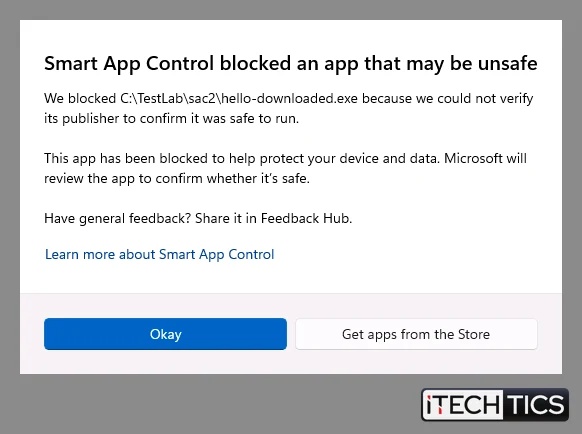
“Smart App Control blocked an app that may be unsafe” — a program (.exe) was blocked because Windows couldn’t verify its publisher. There’s an Okay button and Get apps from the Store, but no way to run it anyway.
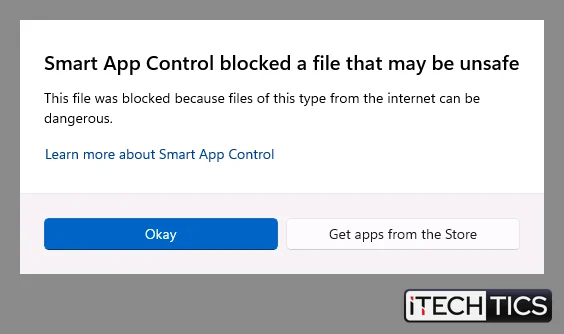
“Smart App Control blocked a file that may be unsafe” — a downloaded script-type file (.cmd, .bat, .js and so on) was blocked: “files of this type from the internet can be dangerous.”
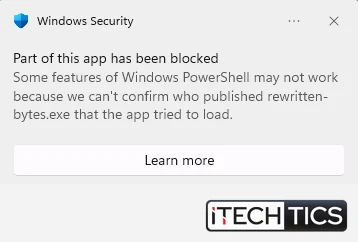
“Part of this app has been blocked” — the program started, but it tried to load another file (often a DLL or plugin) that isn’t properly signed. The notification names both: in my test, “Some features of Windows PowerShell may not work because we can’t confirm who published rewritten-bytes.exe that the app tried to load.” The rest of the program may keep working (Microsoft).
If you missed the message, open Windows Security > Virus & threat protection > Protection history. Smart App Control blocks are listed there with the file name.
What to do, in order
Microsoft is clear that “there is currently no way to bypass Smart App Control protection for individual apps” (FAQ). There’s no exception list. These are the options that work, safest first:
- Make sure the file is what you think it is. Downloaded it from a link in an email, a “crack” or a file-sharing site? Then Smart App Control did its job. Delete it.
- Get a signed version. Download the latest version from the developer’s own site, or check the Microsoft Store. Many developers sign newer releases, and Microsoft signs every Store app.
- For a downloaded script file: right-click it, select Properties, tick Unblock and select OK. In my test the unblocked
.cmdfile then ran. This doesn’t work for programs (.exe): the unblocked test program was still blocked. - Tell the developer. Ask them to sign the program; Microsoft’s developer guidance explains how. You can also report a wrong block in Feedback Hub under Security and Privacy > Smart App Control.
- Turn Smart App Control off, run or install the program, and decide whether to turn it back on. Since spring 2026 you can (see below), and programs that have already run kept working after I switched it back on.
How to turn off Smart App Control
- Open Start, type Windows Security and open it.
- Select App & browser control.
- Under Smart App Control, select Smart App Control settings.
- Select Off.
- Select Yes in the User Account Control prompt.
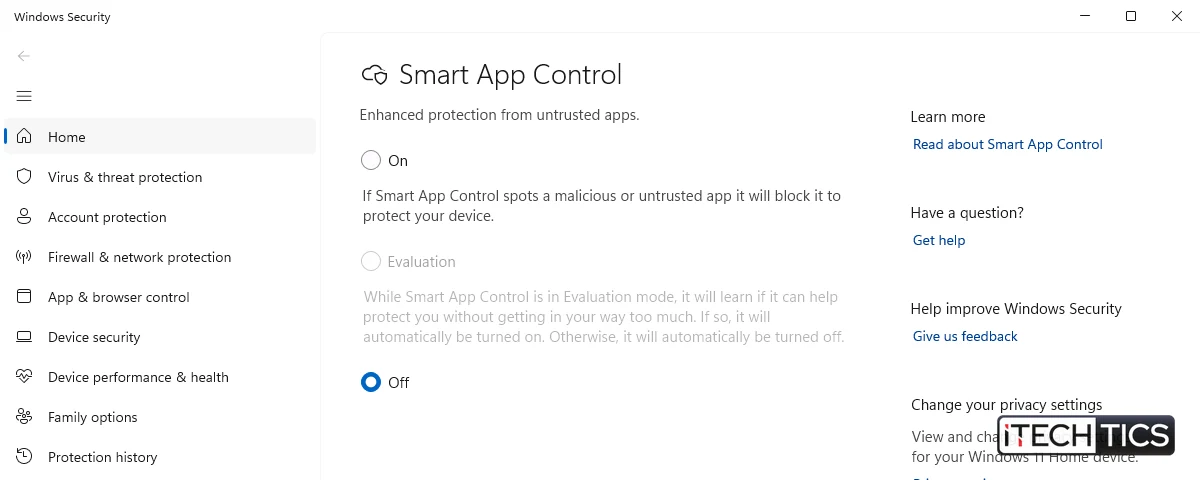
It takes effect immediately; you don’t need to restart. In my test a program that was blocked a moment earlier ran straight away, and the setting stayed Off after restarts.
Once you’ve picked On or Off, Evaluation is greyed out. That’s by design: you can switch between On and Off, but you can’t go back to Evaluation.
What you give up: Defender and SmartScreen keep working, but nothing stops an unknown program from running if you open it. Be careful with downloads, especially installers from search ads and links in messages.
From the command line (administrators): Microsoft documents a registry value for IT admins. In an administrator Terminal:
reg add HKLM\SYSTEM\CurrentControlSet\Control\CI\Policy /v VerifiedAndReputablePolicyState /t REG_DWORD /d 0 /f
CiTool.exe -r
The first line sets the mode (0 = Off, 1 = On, 2 = Evaluation); the second makes Windows apply it now (it asks you to press Enter). Changing the value alone did nothing in my test until CiTool.exe -r ran. Use the Windows Security setting unless you’re scripting this for several PCs.
How to turn Smart App Control back on
On current Windows 11, it’s the same switch:
- Open Windows Security > App & browser control > Smart App Control settings.
- Select On.
- Select Yes in the User Account Control prompt.
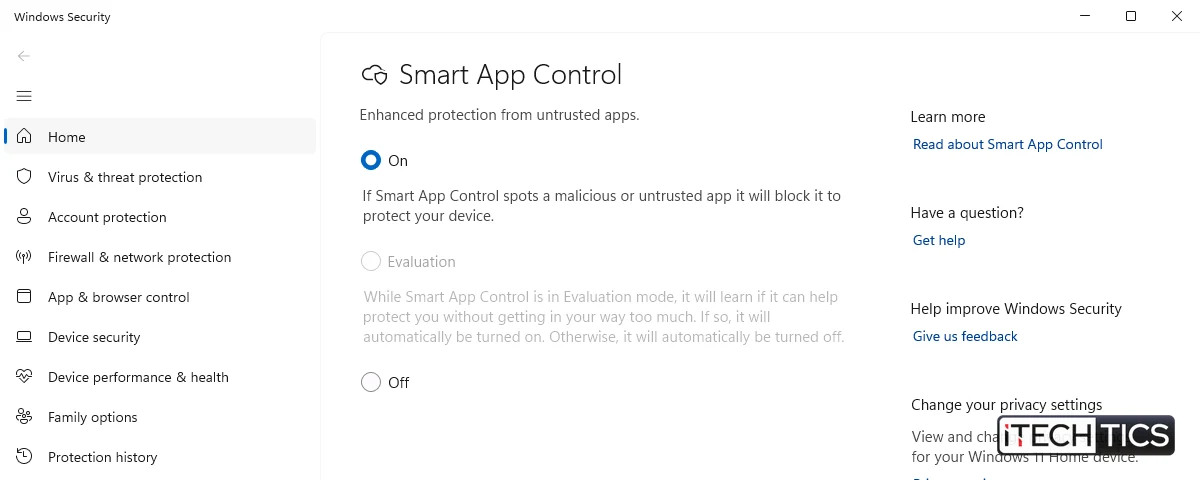
On Windows 11 Home and Pro 26H2 this worked immediately, with no restart: new unsigned programs were blocked again straight away, and it stayed On after restarts.
This is new. Microsoft started rolling it out with the March 2026 preview update (KB5079391), and it’s included in the April 2026 update (KB5083769) and later for Windows 11 24H2 and 25H2, and in 26H2. Before that, Smart App Control could only be turned on during a clean install of Windows, which is why so many answers still tell you to reset your PC. If On is clickable, you don’t need to.
From the command line: the same registry value with 1, then CiTool.exe -r:
reg add HKLM\SYSTEM\CurrentControlSet\Control\CI\Policy /v VerifiedAndReputablePolicyState /t REG_DWORD /d 1 /f
CiTool.exe -r
In my test this switched it on at once, Windows Security showed it as On, it blocked a new unsigned program and it survived a restart. To undo, run the same commands with /d 0.
Diagnostic data doesn’t matter (any more)
Microsoft’s FAQ and many forum answers say Smart App Control needs optional diagnostic data turned on. Both of my test PCs were set to send only required diagnostic data (Settings > Privacy & security > Diagnostics & feedback), and every switch in this article worked: Evaluation, On, Off and back On.
Troubleshooting
The On option is greyed out
- After the October 2026 update: the October 2026 security update KB5127648 could grey out Smart App Control on PCs where it had been turned off. Microsoft fixed it in KB5127936 (28 October 2026, for 25H2 and 26H2) and later updates, and in the November 2026 update KB5132061 for 24H2 Enterprise and Education. On 24H2 Home or Pro, which no longer get updates, upgrade to 25H2 or 26H2. Install the latest updates in Settings > Windows Update and check again.
- A work or school PC: on PCs managed by an organisation, Smart App Control is controlled by the IT department (and Microsoft says it switches itself off within 48 hours of setup on managed PCs). Check Settings > Accounts > Access work or school.
- S mode: Windows in S mode only runs Store apps anyway. Microsoft’s FAQ says you need to switch out of S mode and reset the PC to use Smart App Control.
- Only Evaluation is greyed out: that’s normal once you’ve chosen On or Off.
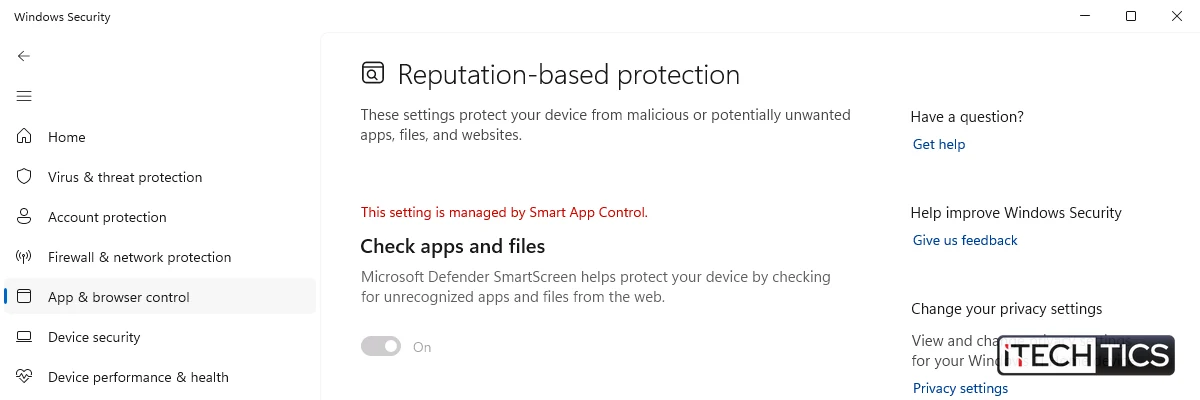
“This setting is managed by Smart App Control”
You’ll see this under Windows Security > App & browser control > Reputation-based protection settings: while Smart App Control is On, Check apps and files (SmartScreen for apps) is locked On. Turn Smart App Control off if you need to change it.
I turned it off, but an app is still blocked
Check which message you get. “Windows protected your PC” is SmartScreen: select More info > Run anyway. A file that disappears or a “Threat found” notification is Microsoft Defender: see my guide on turning off Microsoft Defender or excluding a file. If it really is Smart App Control, check its status with the PowerShell line above; it should say Off.
A brand-new PC let something through
On a freshly installed test PC, a locally created unsigned program ran with Smart App Control On while Defender still had its install-day definitions. After Defender updated, the same kind of program was blocked. On a new PC, let Windows Update finish before judging what Smart App Control blocks.
For developers
Your own unsigned builds will be blocked on PCs with Smart App Control On, including programs compiled on that same PC (my test program was). To ship to Windows 11 users:
- Sign your executables, DLLs and installers with a certificate from a CA in Microsoft’s Trusted Root Program, or use Artifact Signing (formerly Trusted Signing). Self-signed certificates don’t count.
- Test with Smart App Control On. Blocks are logged in Event Viewer > Applications and Services Logs > Microsoft > Windows > CodeIntegrity > Operational as event 3077 (with 3033 and 3118 “Smart App Control Block Details” beside it).
CiTool.exe -lpshows which policy is active. - On your own development PC, turning Smart App Control off is the realistic choice.
How I tested this
I installed Windows 11 Home 26H2 and Windows 11 Pro 26H2 (build 26300.9457) in Hyper-V virtual machines from Microsoft’s ISO files, on 24 and 25 November 2026. Both started in Evaluation mode, with only required diagnostic data, and Defender platform 4.18.26100.4. The tests ran on 29 November 2026.
- Test programs: a minimal unsigned program compiled on each PC with the C# compiler built into Windows, in copies with and without the “downloaded from the internet” mark that browsers add, and one with the mark removed by Unblock. Scripts:
.cmd,.jsand.ps1files with the downloaded mark. - Real software: the Python 3.15.2 and Node.js 26.13.1 installers, downloaded from python.org and nodejs.org.
- Measuring: Smart App Control’s state from
Get-MpComputerStatus, the registry andCiTool.exe -lp; blocks from the CodeIntegrity event log and the on-screen messages. Every change was checked again after a normal restart. - Not tested: Windows 10 (Smart App Control doesn’t exist there); what happens when Evaluation actually ends; pip or npm packages that ship their own unsigned programs; PCs managed by an organisation.
FAQ
Is Smart App Control necessary? No. Microsoft Defender and SmartScreen protect you without it. It’s an extra layer that’s most useful on PCs where people might run a fake installer. If it keeps blocking things you need, turning it off is reasonable.
Can I turn Smart App Control back on after turning it off? Yes, on Windows 11 with the April 2026 update or later: select On in Smart App Control settings. Only Evaluation mode can’t be chosen again.
Can I allow one app in Smart App Control? No. There’s no exception list. Get a signed version of the app, unblock a downloaded script file, or turn Smart App Control off.
Does Smart App Control work with another antivirus? Yes. Microsoft says Defender moves to passive mode while Smart App Control is on and another antivirus provides real-time protection. With Smart App Control off, Defender switches off completely when you install another antivirus, as I found in my Defender tests.
Does Smart App Control slow down games? I found no evidence that it does, and I didn’t measure it. Its effect on games is blocking unsigned game files or mods, not performance.
Is Smart App Control available on Windows 10? No. It’s a Windows 11 feature (version 22H2 and later).
Will Windows turn Smart App Control back on by itself? Not once you’ve chosen Off: it stayed Off through every restart in my tests. Only Evaluation mode switches itself On or Off, at the end of its 45 days.
If Smart App Control behaved differently on your PC, or blocked an app I should test, tell me in the comments with your Windows version.