
Windows 7 was released on 22 October 2009 and reached end of support on 14 January 2020. Microsoft no longer offers Windows 7 ISO files to the public, and itechtics does not host or link to unofficial copies. This page explains what Windows 7 media exists, the legitimate ways to get it, and how to install it from media you are licensed to use.
Quick answer: there is no public Microsoft download for Windows 7 any more. Your options are a Visual Studio subscription, your organisation’s volume licensing, your PC maker’s recovery media, or your original retail disc. For a supported system, use the official Windows 11 ISO or Windows 10 ISO instead.
Windows 7 support status
| Milestone | Date |
|---|---|
| General availability | 22 October 2009 |
| Service Pack 1 (build 7601) | 22 February 2011 |
| End of mainstream support | 13 January 2015 |
| End of extended support | 14 January 2020 |
| End of paid Extended Security Updates (ESU) for businesses | 10 January 2023 |
Windows 7 receives no security updates, and current browsers and much modern software no longer run on it. See our Windows end-of-life tracker for every version’s dates.
Legal ways to get Windows 7 installation media
- Visual Studio subscription (formerly MSDN). Subscribers can search Subscriber Downloads for Windows 7. Which editions appear depends on your subscription level, and the download page lists the official checksum for each file.
- Volume licensing. Organisations that licensed Windows 7 through a Microsoft volume licensing agreement can get media from their licensing portal or reseller.
- Your PC maker’s recovery media. If your computer shipped with Windows 7, check the manufacturer’s support site for recovery media or a recovery partition, using your computer’s service tag or serial number.
- Your original retail disc. A retail Windows 7 DVD together with its product key is still valid installation media. You can turn it into an ISO file or a bootable USB drive.
Avoid Windows 7 ISO files from file-sharing sites and unofficial mirrors. You cannot verify that they are unmodified, and they are a common way to spread malware.
Windows 7 editions and builds
Each Windows 7 ISO contains one edition, so you need media and a product key for the edition you are licensed for. Learn how Windows editions differ.
| Edition | Sold to | Architectures | Maximum RAM (64-bit) |
|---|---|---|---|
| Starter | New netbooks (OEM only) | 32-bit only | 2 GB |
| Home Basic | Emerging markets | 32-bit and 64-bit | 8 GB |
| Home Premium | Consumers | 32-bit and 64-bit | 16 GB |
| Professional | Small businesses and enthusiasts | 32-bit and 64-bit | 192 GB |
| Enterprise | Volume licensing customers | 32-bit and 64-bit | 192 GB |
| Ultimate | Consumers (retail and OEM) | 32-bit and 64-bit | 192 GB |
The original release is build 6.1.7600. Service Pack 1 media is build 6.1.7601. If you install from pre-SP1 media, install Service Pack 1 before anything else, because later updates require it.
Verify your ISO file before you use it
If you have a Windows 7 ISO from one of the sources above, check that the file is intact by comparing its hash with the checksum published by your source. Open PowerShell and run:
Get-FileHash -Algorithm SHA256 "C:\Path\To\Windows7.iso"If the published checksum is SHA-1, replace SHA256 with SHA1. Do not use the file if the values don’t match.
Windows 7 system requirements
- 1 GHz or faster 32-bit (x86) or 64-bit (x64) processor
- 1 GB RAM for 32-bit or 2 GB RAM for 64-bit
- 16 GB of free disk space for 32-bit or 20 GB for 64-bit
- DirectX 9 graphics device with a WDDM 1.0 or later driver
Windows 7 has no drivers for many current chipsets, NVMe drives and USB 3 controllers. On recent hardware, run it in a virtual machine such as Hyper-V or VirtualBox instead.
Create a bootable Windows 7 USB drive
You can use Rufus or Ventoy to make a bootable USB drive from your Windows 7 ISO. A USB drive is faster and more convenient than a DVD.
Learn how to create a multi-boot USB flash drive with multiple ISO files using Ventoy.
Plug in a USB flash drive of at least 8 GB. Back up anything on it first, because the drive will be formatted.
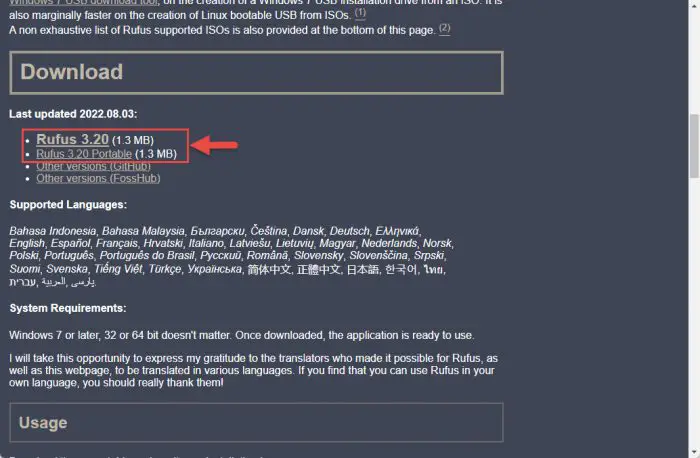
Download Rufus from its official website. The portable version needs no installation.

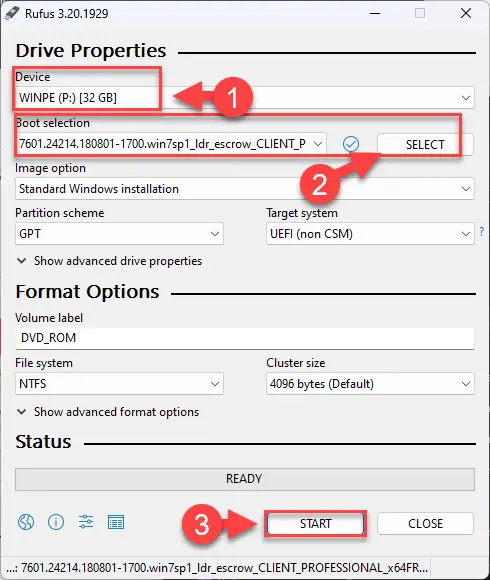
Download Rufus Run Rufus and select your USB drive under Device. Click Select under Boot selection, choose your Windows 7 ISO, leave the other settings at their defaults and click Start.

Configure Rufus to create a bootable USB drive Wait for Rufus to finish. When it shows Ready on a green bar, close the app.
If the computer reports that the drive boots only in UEFI mode, set Rufus’s Partition scheme to MBR for older BIOS computers, or see how to convert MBR to GPT.
Install Windows 7 from the USB drive
Connect the bootable USB drive and restart the computer. Open its one-time boot menu, usually with F12, F10 or Esc, and choose the USB drive.
Choose your language settings and click Next.

Proceed with Windows 7 installation Click Install now.
Begin the installation Accept the license terms and click Next.
Accept the license terms Choose Custom (advanced) for a clean installation.
Perform a custom installation Create or select the partition for Windows and click Next.
Create the partition Setup copies files and restarts a few times. Then complete the setup screens and enter the product key for your edition.


After setup, install Service Pack 1 if your media did not include it, then your hardware drivers. Keep the computer off the internet, or behind strict controls, because it no longer receives security fixes.
Moving on from Windows 7
- Check whether your PC can run Windows 11 with our Windows 11 requirements guide, then get the official Windows 11 ISO.
- For hardware that can’t run Windows 11, use the Windows 10 ISO from Microsoft, keeping in mind its own support dates in the Windows end-of-life tracker.
- To keep an old Windows 7 program, run Windows 7 in a virtual machine on a supported system.
Frequently asked questions
Can I still download Windows 7 from Microsoft?
Not publicly. Microsoft removed public Windows 7 downloads after support ended. Visual Studio subscribers and volume licensing customers can still get media through their Microsoft accounts.
When did Windows 7 support end?
Mainstream support ended on 13 January 2015 and extended support on 14 January 2020. Paid Extended Security Updates for businesses ended on 10 January 2023.
I lost my Windows 7 product key. Can I still install it?
You need a valid product key for the edition you install. Check the certificate of authenticity sticker on your PC or in the original packaging, or contact the PC maker if Windows 7 came preinstalled.
Is it safe to use Windows 7 today?
Not on the internet. Windows 7 has received no security updates since 2020 for consumers and since 2023 for businesses. Use it offline or in a virtual machine, and move to a supported version for everyday use.