
OneDrive starts with Windows, sits in the taskbar and, on many PCs, quietly moves your Desktop and Documents into the cloud. If you don’t use it, you can switch it off in several ways, from pausing it for a couple of hours to blocking it completely.
The catch is your files. Depending on how OneDrive was set up, some of the files you see in File Explorer exist only in the cloud, and they disappear from the PC the moment you disconnect OneDrive. I tested each method below on Windows 11 Home 26H2 (OneDrive 25.087), with files in each of OneDrive’s states, to see exactly what stays and what goes. The policy method was also tested on Windows 11 Home 25H2 and Windows 10 Home 22H2.
Start with the next section if you have files in OneDrive. Then pick the method that matches how far you want to go.
Before you start: make sure your files are on this PC
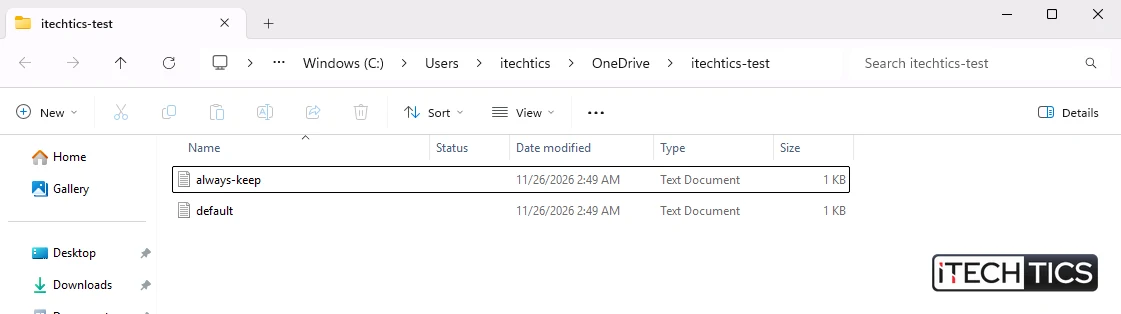
OneDrive keeps files in one of three states. You can see which one in File Explorer’s Status column:
- Solid green circle with a white tick: “Always keep on this device”. The file is downloaded and stays downloaded.
- Green outline tick: locally available. The file is on the PC, but OneDrive may free up the space later.
- Cloud icon: online-only. Only a placeholder is on the PC; the file itself is in the cloud.
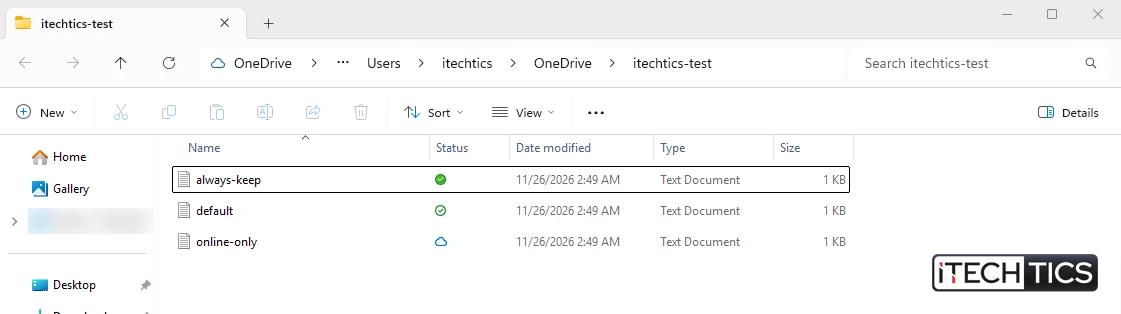
When I unlinked OneDrive, the two downloaded files stayed in C:\Users\<name>\OneDrive with their contents intact. The online-only file was gone from the PC. It was still in my OneDrive account online, but not on the computer. The unlink dialog warns about this in a single sentence, which is easy to click past.
So before you unlink or uninstall:
- Open File Explorer and select your OneDrive folder in the left pane.
- Right-click the folders you want to keep and choose Always keep on this device. Wait until the status of every file changes to the solid green circle.
- If you have more in OneDrive than fits on the disk, download only what you need, or keep using onedrive.com for the rest.
Check whether OneDrive is backing up your Desktop and Documents
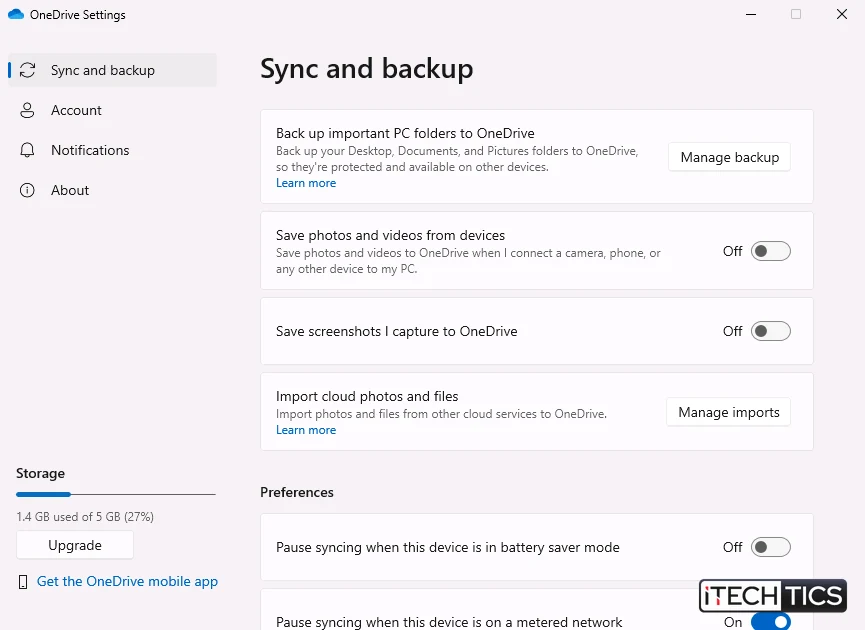
OneDrive can also redirect your Desktop, Documents and Pictures folders into the OneDrive folder (“folder backup”). Windows 11 offers it during setup and after you sign in to OneDrive. When it is on, your “Desktop” actually lives at C:\Users\<name>\OneDrive\Desktop.
To check, open OneDrive settings (click the OneDrive icon in the taskbar, then the gear icon, then Settings) and go to Sync and backup > Manage backup. If any folder is backed up, stop the backup for it before you unlink or uninstall. Microsoft documents that when you stop backing up a folder, new files go to the folder on your PC, and you can choose to copy the files back from OneDrive.
On my test PC, folder backup was off after signing in, so Desktop and Documents stayed in C:\Users\<name>. I did not test turning it off; the step above follows Microsoft’s instructions.
Method 1: Pause or quit OneDrive (temporary)
If OneDrive is only in the way for a while (slow connection, a big download, a presentation), you don’t need to remove it.
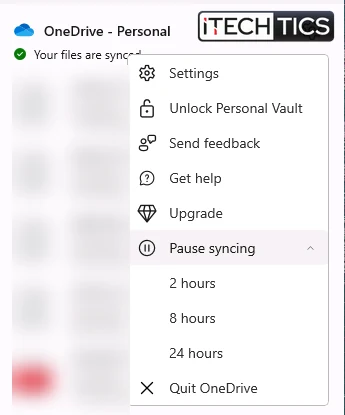
- Click the OneDrive cloud icon in the taskbar’s notification area.
- Click the gear icon at the top right.
- Choose Pause syncing and pick 2 hours, 8 hours or 24 hours.
Or choose Quit OneDrive from the same menu. OneDrive stops completely until you start it again or sign in to Windows the next time.
Method 2: Unlink this PC (stop syncing, keep the app)
Unlinking disconnects this PC from your OneDrive account. Nothing is deleted online, and the app stays installed, so you can link again later.
- Click the OneDrive icon in the taskbar, then the gear icon, then Settings.
- Select Account and click Unlink this PC.
- Click Unlink account.
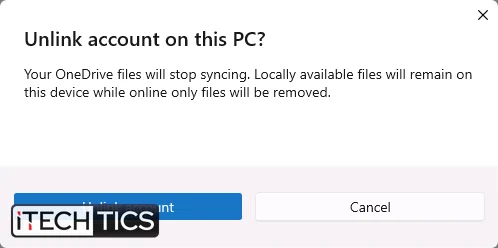
What happens:
- OneDrive stops syncing and shows the sign-in screen again.
- Downloaded files stay in
C:\Users\<name>\OneDrive. They become normal files; changes no longer upload. - Online-only files disappear from the PC. They are still in your account at onedrive.com.
To stop OneDrive asking you to sign in again at every start, combine this with Method 3.
Method 3: Stop OneDrive from starting with Windows
If you want OneDrive installed but not running all the time:
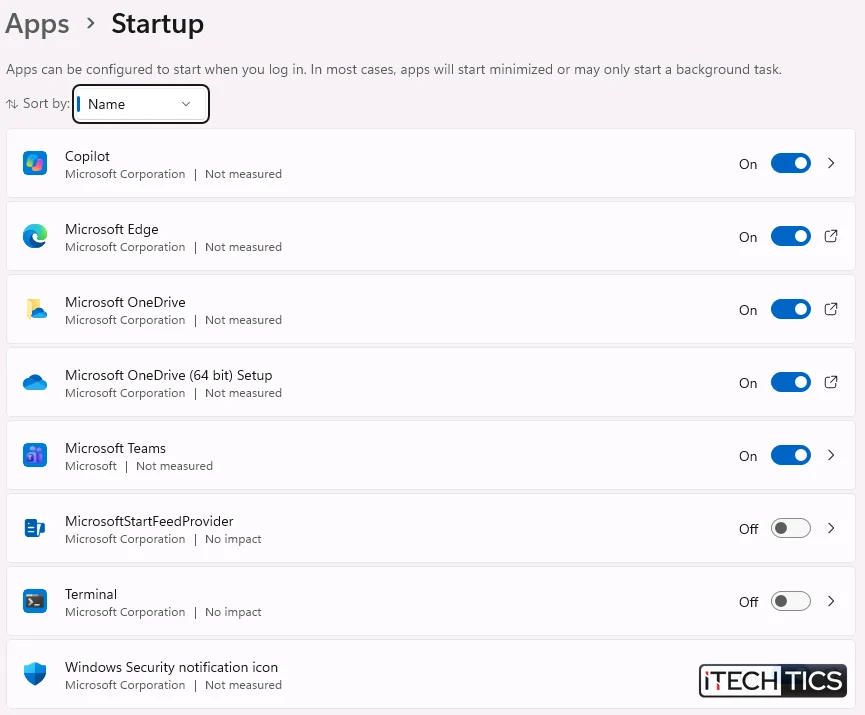
- Open Settings > Apps > Startup.
- Turn off Microsoft OneDrive.
On my test PC there was also an entry called Microsoft OneDrive (64 bit) Setup. It finishes OneDrive’s first-time setup for the user and goes away after it has run. You can turn it off too.
You can also do this from Task Manager (Ctrl + Shift + Esc > Startup apps, right-click Microsoft OneDrive, Disable). For more ways to control what starts with Windows, see our guide to the Windows startup folder.
Method 4: Uninstall OneDrive
Uninstalling removes the OneDrive app. It does not delete your OneDrive account, your files online or the files already downloaded to the PC.
Windows 11
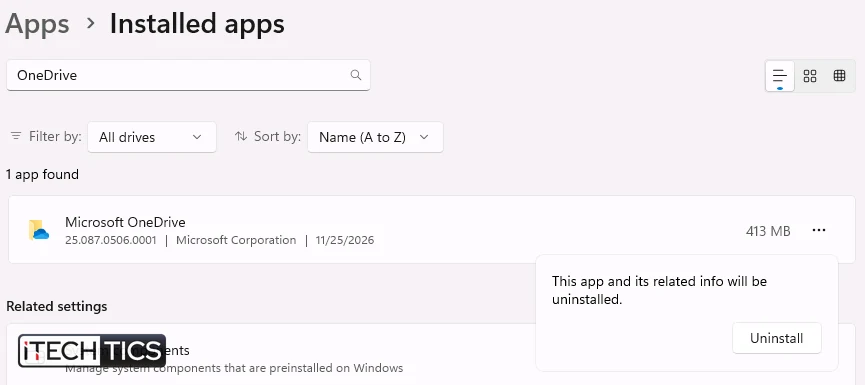
- Open Settings > Apps > Installed apps.
- Type OneDrive in the search box.
- Click the three dots next to Microsoft OneDrive and choose Uninstall.
- Click Uninstall again, then Yes in the User Account Control prompt.
Windows 10
Open Settings > Apps > Apps & features, select Microsoft OneDrive and click Uninstall.
From the command line
On both versions you can also use winget in Terminal or Command Prompt:
winget uninstall Microsoft.OneDriveWhat stays behind
After uninstalling on Windows 11 Home 26H2:
- The
C:\Users\<name>\OneDrivefolder and the downloaded files in it were still there. - The OneDrive process was gone, and it did not come back after a restart.
- The installer
C:\Windows\System32\OneDriveSetup.exestays in Windows. It is part of Windows, so a feature update can install OneDrive again. If that happens, uninstall it again or use Method 5 to block it.
If you later want it back, install OneDrive from Microsoft’s OneDrive download page or with winget install Microsoft.OneDrive.
Method 5: Block OneDrive with Group Policy or the registry (works on Windows Home)
This is the most complete option: OneDrive can’t be used for file storage at all, even if it gets reinstalled. Microsoft’s policy for this is Prevent the usage of OneDrive for file storage.
Windows Pro, Enterprise and Education
- Press Win + R, type
gpedit.mscand press Enter. - Go to Computer Configuration > Administrative Templates > Windows Components > OneDrive.
- Double-click Prevent the usage of OneDrive for file storage, choose Enabled and click OK.
- Restart the PC.
Windows Home
Home doesn’t include the Group Policy Editor, and even if you add gpedit.msc to Windows Home, the policies you set in it are not applied. This policy still works on Home once its registry value is in place. I tested it on Windows 11 Home 25H2 and 26H2 and on Windows 10 Home 22H2: after a restart, OneDrive closed as soon as it started, with no taskbar icon and no sign-in prompt.
The quickest way is the ready-made .reg file and undo file in our Windows Home Policy Finder. Or run this in PowerShell as administrator:
if (-not (Test-Path 'HKLM:\Software\Policies\Microsoft\Windows\OneDrive')) { New-Item -Path 'HKLM:\Software\Policies\Microsoft\Windows\OneDrive' -Force | Out-Null }
Set-ItemProperty -Path 'HKLM:\Software\Policies\Microsoft\Windows\OneDrive' -Name 'DisableFileSyncNGSC' -Value 1 -Type DWord
Restart the PC afterwards. To undo it, delete the DisableFileSyncNGSC value (or run the undo .reg file) and restart.
Which method should you use?
| Method | What it stops | Files on the PC | Lasts after a restart | Survives a Windows feature update | Works on Home |
|---|---|---|---|---|---|
| Pause | Syncing, for 2–24 hours | All kept | No | — | Yes |
| Quit | OneDrive until next sign-in | All kept | No | — | Yes |
| Unlink this PC | Syncing with your account | Downloaded kept, online-only removed | Yes | Yes | Yes |
| Turn off at startup | OneDrive starting with Windows | All kept | Yes | Usually | Yes |
| Uninstall | The app | Downloaded kept, online-only placeholders lost | Yes | Not always (can be reinstalled) | Yes |
| Policy / registry | OneDrive file storage entirely | Unlink first; nothing syncs | Yes | Yes | Yes (tested) |
For most people who simply don’t use OneDrive: make sure your files are downloaded, unlink, then uninstall. Add the policy if OneDrive keeps coming back.
Troubleshooting
OneDrive came back after a Windows update
Feature updates can reinstall OneDrive, because its installer is part of Windows. Uninstall it again, then apply the policy from Method 5 so it can’t be used even if it returns.
My Desktop or Documents look empty after unlinking
This happens when folder backup was on: your files are in C:\Users\<name>\OneDrive\Desktop (or Documents), not in C:\Users\<name>\Desktop. Open the OneDrive folder in File Explorer and move the files back. Anything that was online-only is not on the PC any more; download it from onedrive.com.
Office still saves to OneDrive
Word, Excel and PowerPoint have their own default save location. In any Office app, go to File > Options > Save, tick Save to Computer by default and set the Default local file location.
Uninstall is greyed out or OneDrive comes back on a work PC
If the PC is managed by your organization (work or school account), OneDrive may be installed and configured by policy. Ask your IT department; the settings above may be locked.
FAQ
Will I lose my files if I disable or uninstall OneDrive? Not from your OneDrive account: unlinking and uninstalling only affect this PC. On the PC, files that were downloaded stay in your OneDrive folder, but online-only files disappear, because they were never on the PC in the first place. Mark the folders you need as “Always keep on this device” first.
Do I actually need OneDrive? Windows works without it. You lose automatic cloud backup of the files in it and syncing between devices. If you use Microsoft 365, Office still works without OneDrive on the PC. For storage options and prices, see our OneDrive plans comparison.
Does uninstalling OneDrive cancel my Microsoft 365 subscription? No. The app and the subscription are separate. To cancel a subscription, sign in to account.microsoft.com and go to Services & subscriptions.
How do I turn OneDrive back on? If you unlinked it, start OneDrive from the Start menu and sign in. If you uninstalled it, install it from Microsoft’s download page or with winget install Microsoft.OneDrive. If you used the policy, remove the DisableFileSyncNGSC value first and restart.
Is it safe to delete the OneDrive folder after uninstalling? Only after checking it. The folder holds the files that were downloaded to the PC. Once you have moved or backed up anything you need, you can delete it; this does not delete anything from your OneDrive account.
If one of these methods behaved differently on your PC, or OneDrive came back in a way I didn’t cover, tell me in the comments.