
Your fans spin up, the PC lags while you type, and Task Manager shows Antimalware Service Executable (or, on an up-to-date PC, Microsoft Defender Antimalware Service) at the top of the list, using a third of your CPU or several hundred megabytes of memory. It looks like something is wrong. Usually nothing is: it’s Microsoft Defender doing its job at a bad moment. Sometimes it’s scanning the same kind of file thousands of times, and that you can fix.
Most guides answer this with “disable Defender” or “exclude Defender’s own folder”. The first doesn’t stick on current Windows and the second points at the wrong folder. I measured what Defender actually does on Windows 11 Home and Pro 26H2 and Windows 10 22H2 in November 2026: what’s normal, which settings change anything, and how to find exactly what it’s scanning in five minutes.
What is Antimalware Service Executable?
Antimalware Service Executable is the name Task Manager has long given MsMpEng.exe, the engine of Microsoft Defender Antivirus. It runs as the Microsoft Defender Antivirus Service (WinDefend) and scans files when you open, download or change them, runs scheduled scans, and installs Defender’s daily updates.
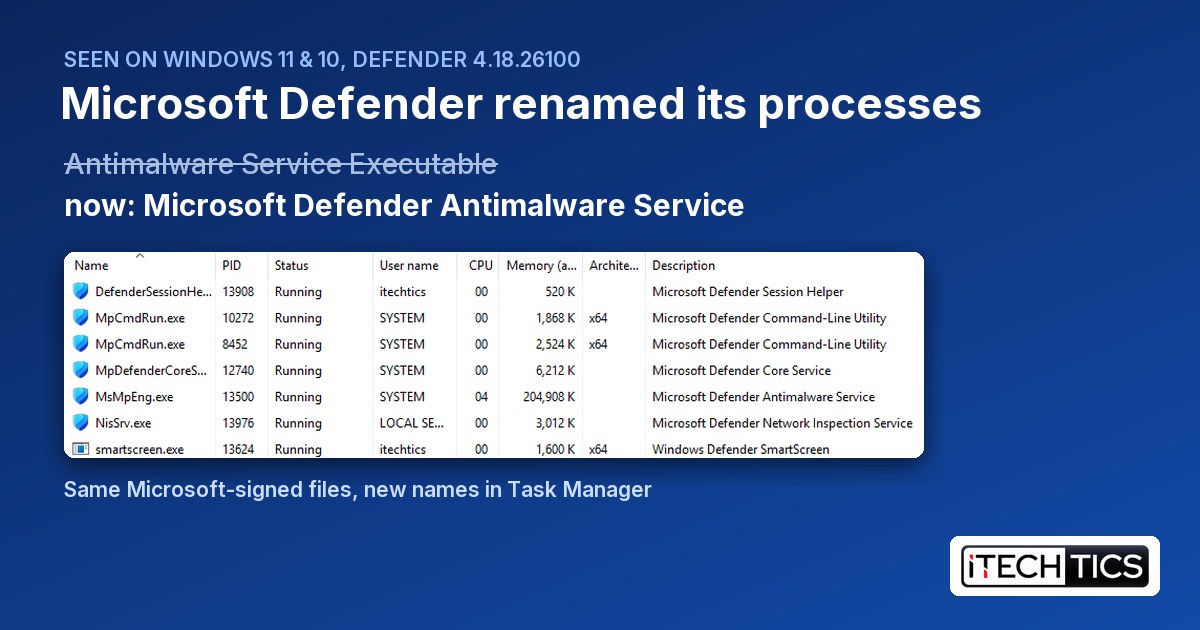
It has a new name. On my test PCs, after Defender updated itself to platform version 4.18.26100 in November 2026, Task Manager no longer said “Antimalware Service Executable”. It listed Microsoft Defender Antimalware Service instead, and the other Defender processes were renamed the same way. The names come from the files’ descriptions: the copy of MsMpEng.exe that shipped with Windows still says “Antimalware Service Executable”, the updated one doesn’t. I haven’t found a Microsoft announcement of the change, so if you’re hunting for the old name and can’t find it, this is why. The file is still MsMpEng.exe. I’ve listed every renamed file, and the new AI files that arrived in the same update, in Microsoft Defender’s new process names.
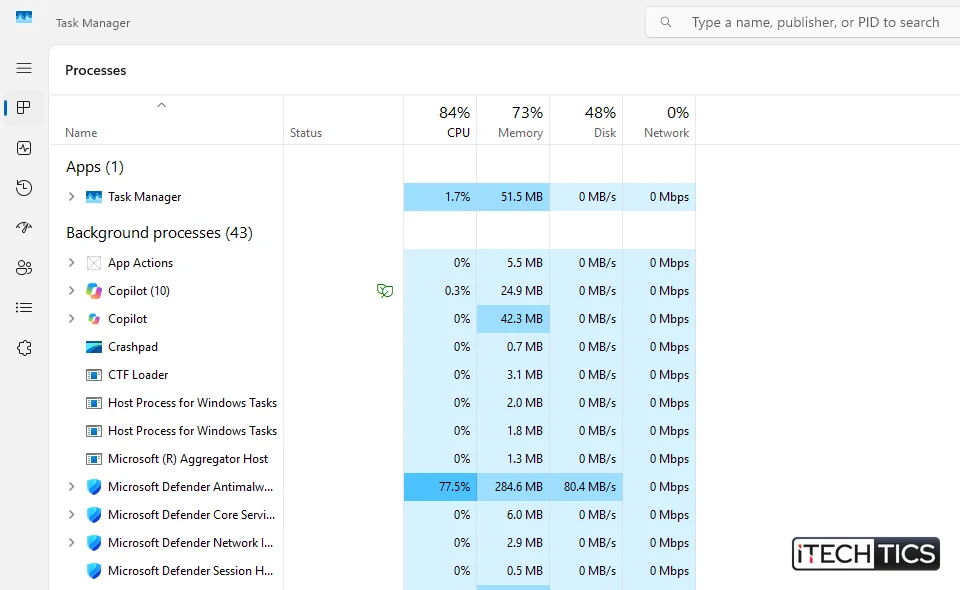
It isn’t alone. On every PC I checked, Windows 11 Home 26H2 and Windows 10 Home 22H2 included, Defender runs these processes:
| In Task Manager (old name) | File | What it does (idle memory in my tests) |
|---|---|---|
| Microsoft Defender Antimalware Service (was Antimalware Service Executable) | MsMpEng.exe | The antivirus engine: real-time and scheduled scanning (200–365 MB) |
| Microsoft Defender Core Service (was Antimalware Core Service) | MpDefenderCoreService.exe | Added in late 2023 to “help with stability and performance” of Defender (Microsoft) (14–25 MB) |
| Microsoft Defender Network Inspection Service (was Microsoft Network Realtime Inspection Service) | NisSrv.exe | Checks network traffic for known attacks (9–14 MB) |
| Microsoft Defender Session Helper (new) | DefenderSessionHelper.exe | Runs in your own signed-in session (under 1 MB) |
If you’ve noticed a new “Antimalware Core Service” or “Core Service” next to the main one, it arrived with a Defender update, not with malware. To see the file names, open the Details tab in Task Manager. (Memory figures are the working set from PowerShell’s Get-Process; Task Manager’s Memory column shows a slightly smaller number.)
Is it a virus?
No, as long as it’s the real file. Malware sometimes borrows familiar names, so it’s worth a ten-second check. The most reliable way is to read the file’s path from Defender’s service entry and check its signature. Open PowerShell and run:
$p = (Get-ItemProperty 'HKLM:\SYSTEM\CurrentControlSet\Services\WinDefend').ImagePath.Trim('"')
Get-AuthenticodeSignature $p | Format-List Path, Status, SignerCertificate
On an up-to-date PC the path is in C:\ProgramData\Microsoft\Windows Defender\Platform\<version>\, the status is Valid, and the signer is Microsoft Windows Publisher. That’s what all three of my test PCs showed (version 4.18.26100.4). An older copy also sits in C:\Program Files\Windows Defender\; that’s the copy Windows shipped with, and Defender’s updates run from the ProgramData folder instead (Microsoft).
If the path is anywhere else, or the signature isn’t valid, run a Microsoft Defender Offline scan.
On Windows 10: Defender is still there after the end of support. Microsoft will keep sending its security intelligence updates to Windows 10 “through October 2028” (Microsoft). My Windows 10 22H2 PC ran the same Defender version as Windows 11, Core Service included.
Why it uses so much CPU: find your symptom
Defender uses CPU for three reasons: it’s updating itself, it’s running a scan, or it’s checking files that something on your PC is creating or opening. Find the row that matches when you see it:
| When it’s high | Likely cause | What to do |
|---|---|---|
| For 5–15 minutes after you start the PC | Defender update, then a scan | Nothing; see below |
| While Windows Update installs | Defender checks every file the update writes | Nothing; it stops when the update does |
| At random while you’re using the PC, then stops | A scheduled scan | Fix 1 and Fix 2 |
| When you click Quick scan or Full scan | Your own scan, which has no CPU limit | Run it when you don’t need the PC |
| While you build code, install packages, unpack archives, sync photos or install a game update | Real-time scanning of thousands of files | Find what it’s scanning, then Fix 3 |
| All the time, for hours | Something keeps creating or opening files | Find what it’s scanning |
| High memory | Usually normal; see memory | |
| 100% disk on a hard drive | Scans on a slow disk | See disk |
After start-up and during Windows Update
The first ten minutes after I started a Windows 11 PC that had been off for a few days, MsMpEng used 330 CPU-seconds: more than a full core’s worth for most of that time. In those minutes Defender downloaded and installed new security intelligence and a new version of itself (4.18.25080 to 4.18.26100), and its scheduled scan task was running. While Windows Update kept installing for another eight minutes, Defender added a few CPU-seconds every minute, checking the files the installer wrote.
After that it calmed down: 0.5% average CPU over two minutes of idle, with short peaks to 12%. That’s normal behaviour. If it settles within 15 minutes of start-up, there’s nothing to fix.
Defender also runs a scan after each new security intelligence update, which is on by default and explains scans that seem to start “outside the schedule” (Microsoft).
Scheduled scans
Defender runs a daily quick scan by itself. On Windows 11 26H2 and Windows 10 22H2, its Windows Defender Scheduled Scan task in Task Scheduler had no triggers at all: Windows starts it as part of Automatic Maintenance, normally at 2:00 AM or the next time the PC is idle. That’s why the old advice to “edit the task’s triggers and conditions” doesn’t work any more: there’s nothing there to edit.
If your PC is asleep at 2:00 AM, the scan runs later, when Windows thinks you’re not using it. If you then come back, you meet a scan that’s already going.
Real-time scanning of your own files
Every new or changed file gets checked. One file is nothing; 20,000 small files from an npm install, a game patch or a photo import is a lot of work. In my test, writing 20,000 small JavaScript files kept Defender at about 85% of the CPU for 77 seconds. This is the most common cause of long spikes, and the CPU limit doesn’t touch it.
Defender’s own bugs are rarer than people think. The best-known one, very high CPU when browsing with Firefox, was fixed in Defender’s March 2023 engine update (Mozilla). I didn’t find a Microsoft-confirmed MsMpEng high-CPU bug for consumer Windows in 2024–2026.
Find what Defender is scanning (5 minutes)
Microsoft has a built-in tool that records what Defender scans and how long each item takes, and it works on Windows 11 Home. Run it while the problem is happening.
- Open PowerShell as administrator (right-click Start > Terminal (Admin)).
- Create a folder for the recording and record 60 seconds:
mkdir C:\Temp -Force
New-MpPerformanceRecording -RecordTo C:\Temp\defender.etl -Seconds 60- When it finishes, show the top programs, file types and files:
Get-MpPerformanceReport -Path C:\Temp\defender.etl -TopProcesses 5 -TopExtensions 5 -TopFiles 5You get three tables:
- TopProcesses shows which program’s activity caused the scans. This is usually the answer.
- TopExtensions shows which file types took the time.
- TopFiles shows the slowest single files, which tells you the folder.
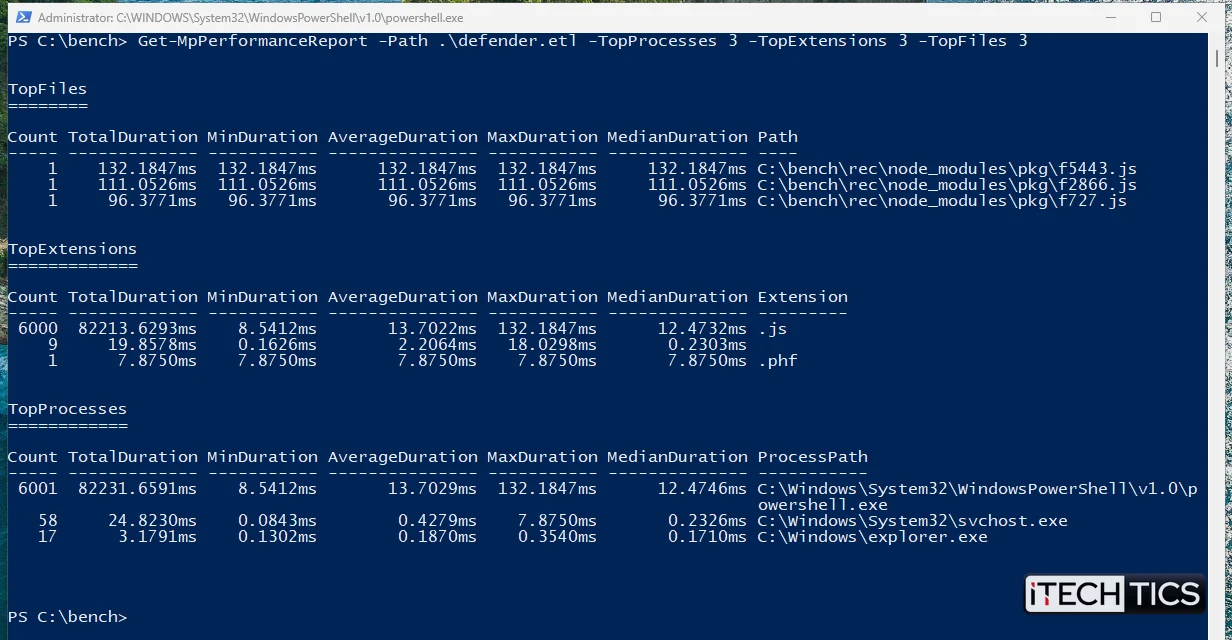
When I ran it during my 20,000-file test, the answer was immediate: **6,000 .js scans in 45 seconds, 82 seconds of scanning in total** (13.7 ms each), all caused by one program, and every file under the same node_modules folder. That’s the folder to deal with in Fix 3.
Two things to know:
- The recording contains file paths from your PC, and PowerShell warns you about that. Don’t post it publicly; delete it when you’re done with
Remove-Item C:\Temp\defender.etl. - If you see “Windows Performance Recorder is already recording”, stop the old session with
wpr -cancel -instancename MSFT_MpPerformanceRecordingand try again (Microsoft).
If the top process is something you didn’t expect, such as an unknown program in your user folder, that’s worth a Defender Offline scan before anything else.
Fix 1: Let the scheduled scan run when it suits you
If the spikes come from scheduled scans, move them to a time when the PC is on and you’re not using it.
- Open Control Panel > System and Security > Security and Maintenance.
- Expand Maintenance and select Change maintenance settings.
- Pick a time, such as your lunch break, and select OK. If the PC sleeps at night, you can also tick Allow scheduled maintenance to wake up my computer.
You can also run a quick scan yourself when you step away (Windows Security > Virus & threat protection > Quick scan). Microsoft says Defender can skip a scheduled quick scan if a qualifying quick scan already ran in the past 7 days (Microsoft).
Defender also has its own schedule settings in PowerShell. For example, to set the scheduled scan to Saturdays at 1:00 PM (the time is in minutes after midnight):
Set-MpPreference -ScanScheduleDay 7 -ScanScheduleTime 780Undo: Set-MpPreference -ScanScheduleDay 0 -ScanScheduleTime 120 (every day, 2:00 AM, the defaults on my test PCs). Days are 0 = every day, 1 = Sunday to 7 = Saturday (Microsoft). I checked that Windows accepts these settings; I didn’t wait a week to watch a scan start on its new day, so treat Automatic Maintenance as the main control.
Leave the task itself alone in Task Scheduler, whatever other guides say: it has no schedule of its own to change, and Windows decides when to start it.
Fix 2: Lower the CPU limit for scheduled scans
Defender has a CPU limit for scans, 50% by default. Lots of guides tell you to lower it. It does work, but only for one kind of scan, which is why so many people report “I set it to 20% and nothing changed”.
I measured MsMpEng’s CPU use while it scanned the same folder at both settings:
| Scan | Limit | MsMpEng average CPU | Time |
|---|---|---|---|
| Custom scan I started (Home) | 50% (default) | 69% | 65 s |
| Custom scan I started (Home) | 20% | 69% | 69 s |
| Custom scan I started (Pro) | 50% | 57% | 91 s |
| Custom scan I started (Pro) | 20% | 63% | 78 s |
| Scheduled scan (Home) | 20% | 21% (max 25%) | 218 s |
Scans you start yourself ignore the limit, exactly as Microsoft documents: “Manual scans ignore this setting” (Microsoft). The scheduled scan kept to it and took about three times longer for the same amount of work. The limit doesn’t apply to real-time scanning either, so it can’t help with a build or a download.
Microsoft also says a scheduled scan that runs while the PC is idle skips the limit to finish sooner, which is the right trade-off: it only holds back when you’re there.
To lower it, run this in PowerShell as administrator. It worked on Windows 11 Home and Pro with Tamper Protection on; there’s no Group Policy needed:
Set-MpPreference -ScanAvgCPULoadFactor 20Undo: Set-MpPreference -ScanAvgCPULoadFactor 50
Low CPU priority for scheduled scans
The other setting, EnableLowCpuPriority, lowers the priority of scheduled scans so your programs get the CPU first. I tested it with all four CPU cores kept busy by other programs while a scheduled scan ran:
| Setting | Scan time | Defender CPU | Your programs got |
|---|---|---|---|
| Off (default) | 9 minutes, finished | 13% | 78% of the CPU |
| On | over 25 minutes, still running | 4% | 88% of the CPU |
So it does give games and heavy work more room during a scan, but the scan takes about three times longer and can still be going when you sit down again. It’s worth turning on if you game or render while scans run:
Set-MpPreference -EnableLowCpuPriority $trueUndo: Set-MpPreference -EnableLowCpuPriority $false
Check both settings with Get-MpPreference | Select-Object ScanAvgCPULoadFactor, EnableLowCpuPriority.
Fix 3: Exclude the one folder that’s being hammered
If the analyzer showed one folder of files you created yourself, such as a code project’s build output, a package cache or a game mod workspace, a folder exclusion is the real fix. It tells Defender to skip scanning files in that folder.
In my test, writing the same 20,000 files:
| Where the files went | Time | Defender CPU |
|---|---|---|
| Normal folder (average of three runs) | 81 s | 85% |
| Excluded folder | 29 s | 5% |
| Dev Drive (performance mode) | 96 s | 73% |
The exclusion made the job 2.7 times faster and took Defender from 85% of the CPU to 5%.
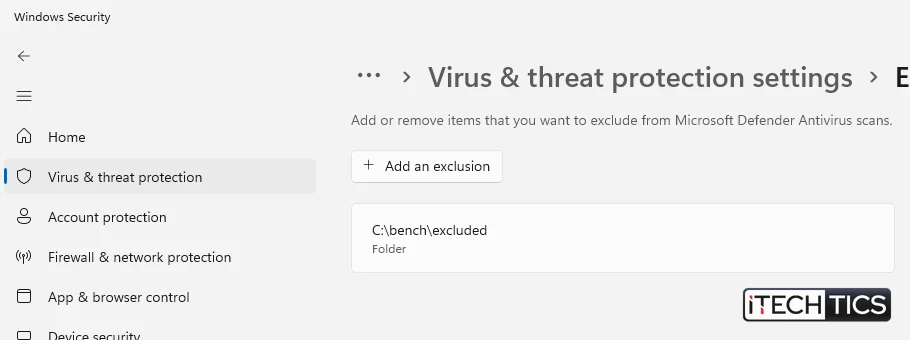
To add one:
- Open Windows Security > Virus & threat protection.
- Under Virus & threat protection settings, select Manage settings.
- Scroll to Exclusions and select Add or remove exclusions, then Yes.
- Select Add an exclusion > Folder and choose the folder.
Or in PowerShell as administrator (replace the path with your own):
Add-MpPreference -ExclusionPath 'D:\Projects\myapp\node_modules'Undo: Remove-MpPreference -ExclusionPath 'D:\Projects\myapp\node_modules', or select the exclusion in Windows Security and Remove.
Every exclusion is a hole in your protection, so keep it narrow:
- Exclude one folder of files you made or trust, not a drive, not
C:\, not your user folder, Downloads or Temp. Malware arrives through those. - Don’t exclude a program such as
MsMpEng.exe,powershell.exeormsbuild.exe. A process exclusion skips every file that program opens. Microsoft lists these among common exclusion mistakes. - Don’t exclude a file type such as
.jsor.exe. - Remove the exclusion when the project is finished.
What about a Dev Drive?
Windows 11’s Dev Drive runs Defender in “performance mode”, which scans files after they’re opened instead of before. Microsoft calls it safer than an exclusion. In my test it gave no speed-up (96 s against 81 s), because Defender still scanned every file. Microsoft also says performance mode isn’t meant for high-CPU or high-memory problems with MsMpEng (Microsoft). It may still help builds that open many files rather than create them, and it worked on Windows 11 Home, but it needs at least 50 GB of disk space, and I wouldn’t create one just to calm Defender down.
High memory usage
Antimalware Service Executable regularly uses a few hundred megabytes, and that’s normal. In my tests:
| PC | Idle | During a scan |
|---|---|---|
| Windows 11 Home 26H2 (4.4 GB RAM) | 268–364 MB | up to 415 MB |
| Windows 10 Home 22H2 (2.7 GB RAM) | 199–251 MB | not measured |
The highest idle figure came right after start-up, before Defender’s update finished. On a PC with 4 GB of RAM, 300–400 MB is a noticeable share, and Task Manager puts it near the top, but it’s not a leak.
Worry if it stays far above that range for hours with nothing running. Use the analyzer to see what it’s working on. Microsoft names large .iso and .vhdx files in a folder synced by OneDrive or Offline Files as a known cause of heavy scanning (Microsoft).
100% disk usage on a hard drive
On a laptop with a spinning hard drive, a scan can keep the disk at 100% and make everything slow, even when the CPU is fine. Reader reports describe Settings taking minutes to open during a scan. I didn’t test a hard drive: my test PCs use SSDs.
What helps:
- Move scans to a time you’re away (Fix 1).
- Let Windows Update finish; Defender checks every file it installs, and the two together are the worst case on a hard drive.
- If the PC still has a hard drive in 2026, an SSD is the fix that makes the most difference, for Defender and everything else.
Can you stop or disable it?
Not from Task Manager. End task on it fails with “Access is denied”, which is what the three readers who commented on our old version of this guide found. Windows protects antivirus services so that malware can’t switch them off (Microsoft), and stopping the service, changing its startup type or setting its priority and affinity fail the same way. That’s deliberate, and it’s not something to work around.
What actually works:
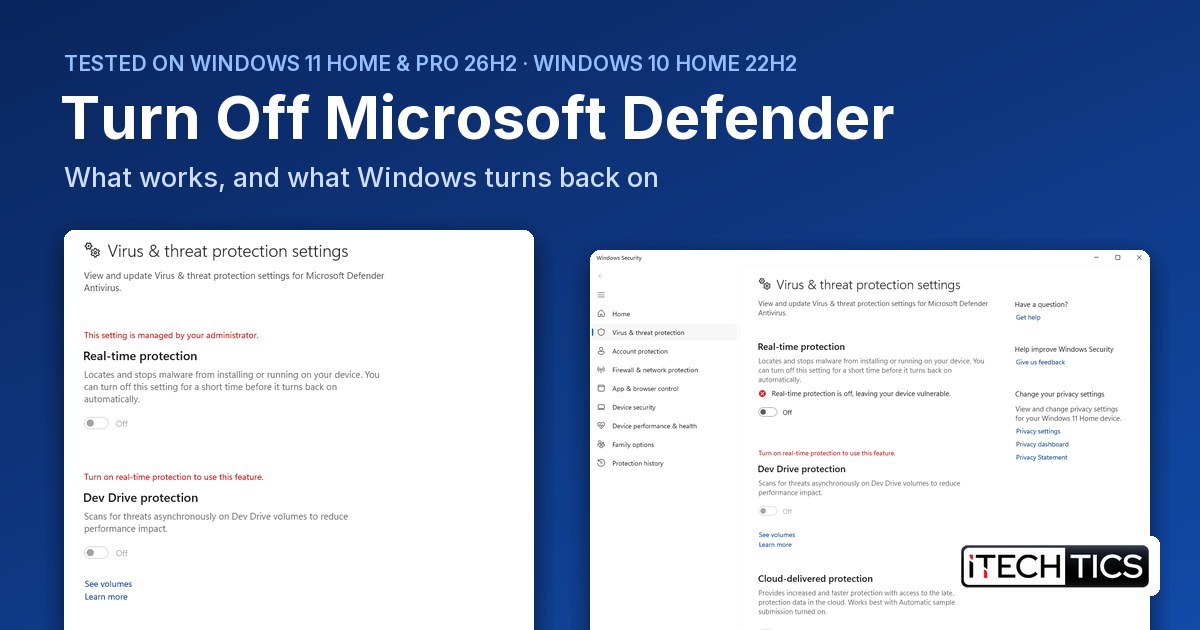
- Turn off Real-time protection for a while. In Windows Security > Virus & threat protection > Manage settings, switch off Real-time protection. Defender switches it back on by itself after a short time, so use it to finish one big job, not as a fix.
- Install another antivirus. When a third-party antivirus registers itself, Defender turns off or goes into passive mode, and MsMpEng stops scanning.
- Turn Defender off properly. I tested every method on Windows 11 and 10 in my guide on how to disable Windows Defender, including which ones Tamper Protection quietly undoes.
These are the tips you’ll find elsewhere that don’t work any more:
| Tip | What actually happens |
|---|---|
Exclude C:\Program Files\Windows Defender because “Defender scans itself” | The running copy is in C:\ProgramData\...\Platform\, and Microsoft doesn’t list self-scanning as a cause. It changes nothing. |
| Exclude MsMpEng.exe | A process exclusion skips files Defender itself opens. Microsoft says to avoid excluding the process. |
| Edit the scheduled scan’s triggers and conditions in Task Scheduler | The task has no triggers on Windows 11 26H2 or Windows 10 22H2; Automatic Maintenance starts it. |
Set the DisableAntiSpyware registry value | Ignored since Defender platform 4.18.2007.8 in 2020 (Microsoft). |
| Lower its priority or affinity in Task Manager | “Access is denied”. |
| “The 50% limit caps everything” | Only scheduled scans. Your own scans and real-time scanning ignore it. |
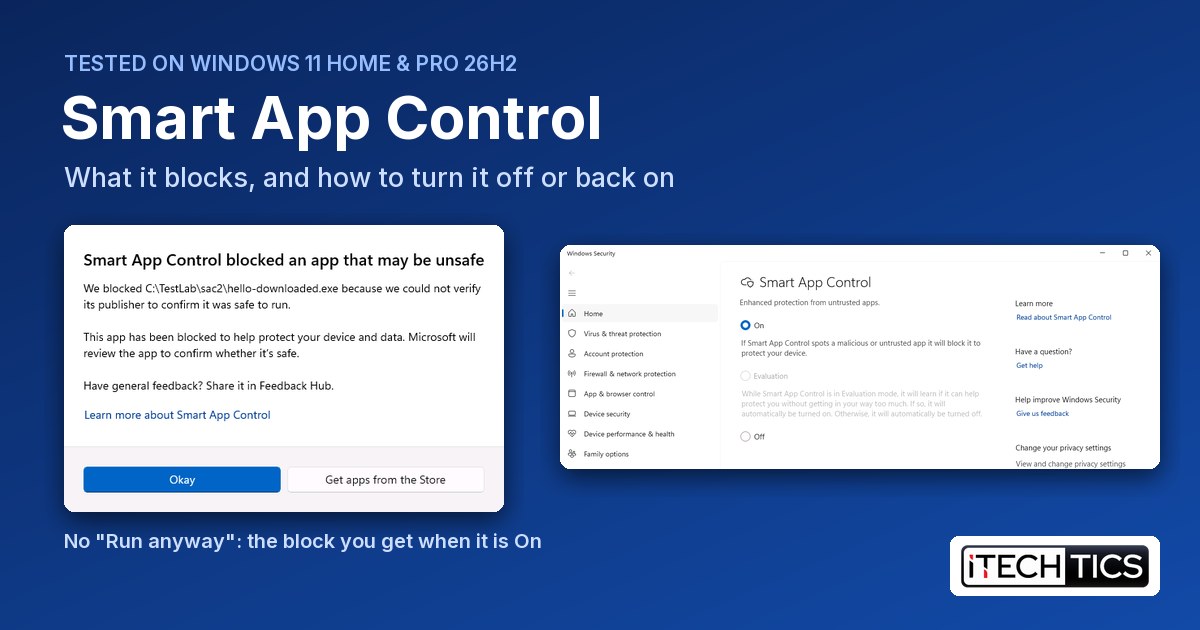
If an app was blocked rather than slowed down, that’s a different feature: see Smart App Control. For the rest of the Windows Security settings worth changing, see my Windows Security settings guide.
How I tested this
I used three Hyper-V virtual machines with 4 virtual CPUs each: Windows 11 Home 26H2 (build 26300.9457, 4.4 GB RAM), Windows 11 Pro 26H2 (same build) and Windows 10 Home 22H2 (19045.6456, 2.7 GB RAM). All had Defender platform 4.18.26100.4, security intelligence 1.463, Tamper Protection on and every Defender setting at its default. The tests ran on 29 and 30 November 2026.
- CPU: a script sampled MsMpEng’s CPU time every second and reported it as a share of all four CPUs, so 100% means every core was busy.
- Scans: a custom scan of
C:\Windows\System32started withStart-MpScan, and the Windows Defender Scheduled Scan task started from Task Scheduler, each from the same saved state of the PC. - Real-time scanning: a script that wrote 20,000 unique 8 KB
.jsfiles into 200 folders, timed in a normal folder (three runs), an excluded folder and a 60 GB Dev Drive. - Low priority: four busy loops kept every CPU occupied while the scheduled scan ran, with the scan capped at 25 minutes.
- Limits: virtual machines, not a laptop with a hard drive; I didn’t measure games. On Windows 11 Pro, starting the scheduled scan task by hand didn’t start a scan, so the scheduled-scan results are from Home. I didn’t try to stop Defender itself in these tests; the “Access is denied” result comes from Microsoft’s documentation and readers’ reports.
FAQ
What is Antimalware Core Service? It’s MpDefenderCoreService.exe, a second Defender process added in late 2023 to improve Defender’s stability and performance. It used 14–25 MB in my tests on Windows 11 Home and Windows 10 Home. Microsoft recommends leaving it running.
Is it safe to end Antimalware Service Executable? You can’t: Task Manager refuses. If you need Defender out of the way for a big job, turn Real-time protection off for a while instead, and it turns itself back on.
Does Antimalware Service Executable slow down games? Only while it’s scanning. A scheduled scan during a game takes CPU and disk; low priority and a better maintenance time (Fix 1, Fix 2) help. Game updates are scanned like any download, so it’s busy while they install. I didn’t measure frame rates.
Should I add MsMpEng.exe as an exclusion? No. It doesn’t reduce Defender’s work, and Microsoft advises against excluding the process. Exclude one busy folder instead, if the analyzer points to one.
Why is Network Realtime Inspection Service (NisSrv.exe) using my CPU or GPU? NisSrv checks network traffic. It used 9–14 MB and almost no CPU in my tests. Some readers report it at high GPU use; Microsoft hasn’t explained that. On PCs with an Intel processor, Defender can move some memory scanning to the integrated graphics (Microsoft), which may be what shows as GPU use.
Is Defender still updated on Windows 10? Yes. Security intelligence updates continue through October 2028, and my Windows 10 22H2 PC ran the same Defender version as Windows 11.
Does it matter if I use another antivirus? With another antivirus registered, Defender turns off or goes passive, and Antimalware Service Executable should use very little. If it’s still busy, check that the other antivirus is really installed and active in Windows Security > Virus & threat protection.
If Antimalware Service Executable is still high on your PC after these steps, tell me in the comments what the analyzer’s TopProcesses table showed and your Windows version, and I’ll look into it.