

Microsoft released Windows 11 26H2 at the end of September. The release was very quiet, at least for me, because I didn’t get an upgrade notification on any of my PCs. But now it’s available for installation. That’s why I thought I should write about my experience of downloading and installing Windows 11 26H2 and also upgrading some of my PCs.
If you are already running Windows 11 24H2 or 25H2, you don’t need the full ISO image to upgrade (for older versions, see our Windows 11 ISO downloads page). Microsoft has given a small enablement package (KB5121794) which can be downloaded and installed in a few minutes. A restart may be required after installation of the package. Once installed, go to Run -> winver. This will show you the Windows version installed on your PC.
Windows 11 26H2 at a glance
| Official name | Windows 11 2026 Update, version 26H2 |
| Released (general availability) | September 29, 2026 |
| Rollout status | Available to all eligible devices (Microsoft release health, October 28, 2026) |
| OS build | 26300 (24H2 is 26100 and 25H2 is 26200, and all three share one servicing branch) |
| Build in the ISO | 26300.9457 (September 2026 refresh) |
| Latest build | 26300.9974, KB5132061, November 10, 2026 (security update). Optional preview: 26300.10075, KB5132057, November 19, 2026 |
| Enablement package | KB5121794 (from 24H2 or 25H2, one restart) |
| Architectures | x64 and Arm64 (there is no 32-bit Windows 11) |
| Languages | 38 ISO languages |
| Security updates, Home and Pro | Until October 10, 2028 |
| Security updates, Enterprise and Education | Until October 9, 2029 |
| LTSC edition | None. The current LTSC release is still Windows 11 Enterprise LTSC 2024 (24H2). |
Sources: Windows 11 release information, Windows 11, version 26H2 known issues and notifications, KB5121794.
Which download method should you use?
Windows 11 26H2 can be downloaded and installed using different methods. The right method depends upon what you’re running at the moment. The table below shows what method you should prefer in each situation.
| You’re on | Best method | Enablement package? | Download size | Restarts |
|---|---|---|---|---|
| Windows 11 25H2 (build 26200) | Windows Update | Yes, KB5121794 | Under 200 KB once the current monthly update is installed | 1 |
| Windows 11 24H2 (build 26100) | Windows Update. Do it now if you have Home or Pro, because 24H2 Home and Pro stopped getting security updates on October 13, 2026. | Yes, KB5121794 | Under 200 KB once the current monthly update is installed | 1 |
| Windows 11 23H2 (build 22631) | Windows Update (full feature update) or setup.exe from the ISO | No | Full OS, several GB | Several; allow 30 to 90 minutes |
| Windows 11 22H2 or 21H2 | Installation Assistant or setup.exe from the ISO | No | Full OS, several GB | Several |
| Windows 10 22H2 (free consumer ESU ended October 13, 2026) | Installation Assistant (needs Windows 10 2004 or later and 9 GB free) or setup.exe from the ISO | No | Full OS, several GB; the ISO itself is about 8.4 GB | Several |
| Windows 11 26H1 (build 28000, new Arm PCs from 2026) | None. Stay on 26H1. | No | Not offered | None |
| Windows Insider, Release Preview channel | Already on build 26300. Turn on “Stop getting preview builds” and you leave the program on the next public release. | Not needed | Monthly updates only | 1 per monthly update |
| Windows Insider, Dev, Beta or Canary channel | Clean install from the 26H2 ISO, because those builds are newer than 26300 and can’t roll back to it | No | About 8.4 GB ISO | Clean install |
| Windows 11 Enterprise LTSC 2024 | None. There’s no 26H2 LTSC. Moving to the General Availability Channel means reinstalling with Enterprise media. | No | Not applicable | Not applicable |
| A new PC, a VM or a wiped drive | Clean install from the ISO or Media Creation Tool USB | Not applicable | About 8.4 GB (x64) or 7.9 GB (Arm64) | Clean install |
Two notes on the table. The enablement package needs the September 22, 2026 update (KB5124010) or a later monthly update installed first. Windows Update handles that order for you. And devices that shipped with 26H1 run a different Windows core (build 28000). Microsoft says that version isn’t a feature update for existing devices and that 26H1 devices can’t move to 26H2. 26H1 itself is supported until March 14, 2028 on Home and Pro.
Method 1: Get 26H2 through Windows Update (24H2 and 25H2)
This is the fastest and safest route. Nothing large downloads, because the 26H2 code has been arriving dormant in each monthly update since 24H2. The enablement package works as the “master switch”, in Microsoft’s words, that turns it on.
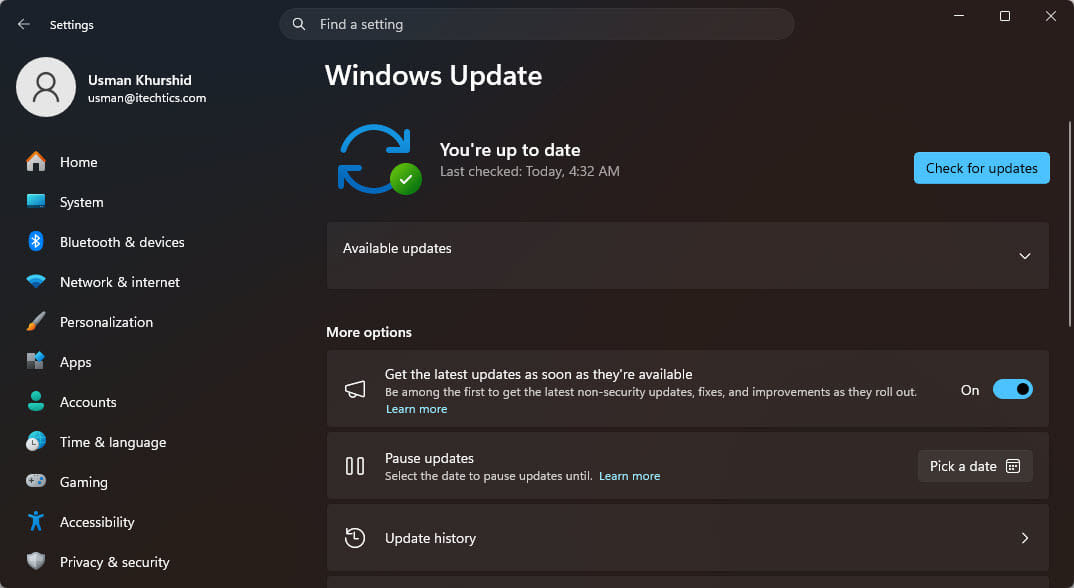
- Open Settings > Windows Update.
- Turn on Get the latest updates as soon as they’re available. Without this toggle, Windows may wait until your device’s turn in the gradual rollout.

- Select Check for updates.
- When “Windows 11, version 26H2 is available” appears, select Download & install.
- Restart when asked. Then run
winverand look for Version 26H2 (OS Build 26300.xxxx).
If 26H2 isn’t offered
- Install the latest monthly update first. The enablement package needs KB5124010 (September 22, 2026) or later. If you prefer the command line, see how to run Windows Update from the command line.
- Check for a safeguard hold. Microsoft blocks the offer on devices with a known compatibility problem. As of November 24, 2026, Microsoft lists one open 26H2 issue, and it affects SQL Server on servers (see Known issues below). To see whether a hold applies to your device, follow KB5006965.
- Check for a policy pin. On work PCs, a “target release version” policy may hold the device on 25H2. Your IT team controls that.
- Unsupported hardware: Windows Update doesn’t offer feature updates to PCs that don’t meet the requirements. See Unsupported hardware.
Pin or request 26H2 with a policy (Pro, Enterprise, Education)
To have Windows Update target 26H2 specifically, set the target version policy. In Group Policy, go to Computer Configuration > Administrative Templates > Windows Components > Windows Update > Manage updates offered from Windows Update > Select the target Feature Update version. Enable it, set the product to Windows 11 and the version to 26H2. Windows Home has no Group Policy editor (see how to enable gpedit.msc on Windows 11). The same policy is stored in the registry:
reg add "HKLM\SOFTWARE\Policies\Microsoft\Windows\WindowsUpdate" /v TargetReleaseVersion /t REG_DWORD /d 1 /f
reg add "HKLM\SOFTWARE\Policies\Microsoft\Windows\WindowsUpdate" /v ProductVersion /t REG_SZ /d "Windows 11" /f
reg add "HKLM\SOFTWARE\Policies\Microsoft\Windows\WindowsUpdate" /v TargetReleaseVersionInfo /t REG_SZ /d 26H2 /f
Delete the three values once the PC is on 26H2. If you leave them, the PC stays pinned to 26H2 when 27H2 arrives.
Method 2: The KB5121794 enablement package
KB5121794 is titled “Feature update to Windows 11, version 26H2 by using an enablement package”. It applies to Home, Pro, Enterprise, Education, Enterprise multi-session and IoT Enterprise on 24H2 and 25H2.
| Channel | Available? | Notes |
|---|---|---|
| Windows Update | Yes | Shows as “Windows 11, version 26H2” |
| WSUS | Yes | Syncs with Product: Windows 11 and Classification: Upgrades |
| Microsoft Update Catalog | No | Microsoft’s KB page says it’s “only available through the other release channels”. Catalog searches for KB5121794 on November 12 and November 24, 2026 returned no results. |
| Intune, Windows Autopatch | Yes | Deploy it through a feature update policy targeting 26H2 |
You can download the enablement package from the links below:
Download Enablement Package (KB5121794) for AMD and Intel (x64)
Once downloaded, simply run the .msu file to install the enablement package.
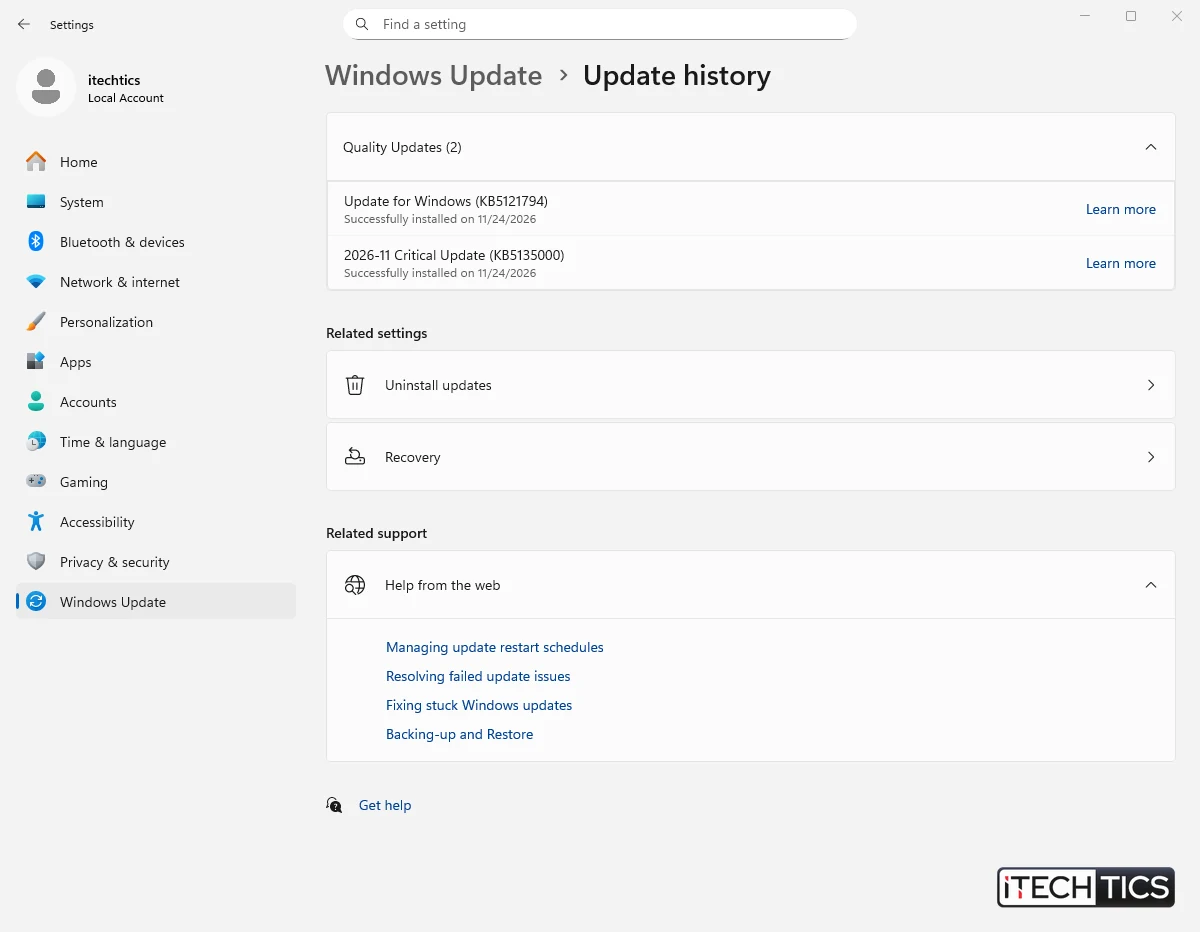
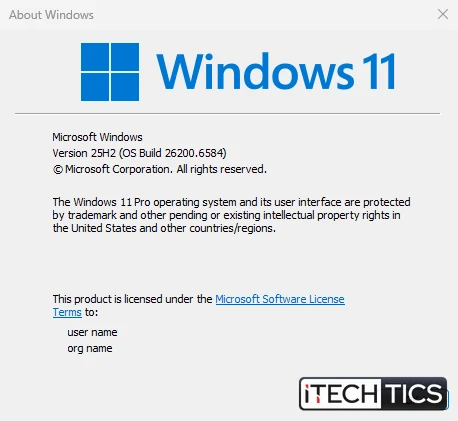
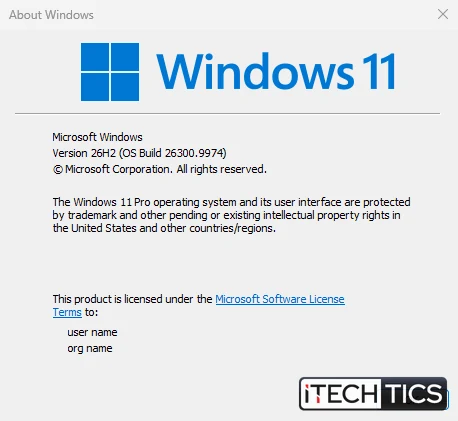
Install the latest monthly update first. If you install KB5121794 by hand on a PC that isn’t up to date, it installs “successfully” but nothing changes. In our test on a 25H2 PC that had never been updated, Update history listed KB5121794 as successfully installed, yet winver still said 25H2 (build 26200.6584) after the restart. The PC moved to 26H2 only after we installed the November cumulative update (KB5132061) and restarted again. So update the PC from Settings > Windows Update first, then install the enablement package. If you’ve already installed KB5121794, install the latest update and restart: that’s what switched our test PC to 26H2 (build 26300.9974).
Method 3: Windows 11 Installation Assistant
The Installation Assistant upgrades the PC it runs on, in place, without making an ISO. Use it for Windows 10 PCs and older Windows 11 versions (21H2 to 23H2). It’s x64 only and doesn’t run on Arm PCs.
- On the Download Windows 11 page, select Download Now under Windows 11 Installation Assistant.
- Run
Windows11InstallationAssistant.exeand accept the license terms. - Leave the PC online and plugged in. The Assistant downloads the full OS, then restarts several times.
Requirements: Windows 10 version 2004 or later, 9 GB of free disk space, and a PC that passes the Windows 11 compatibility check. Run PC Health Check first if you aren’t sure.
Method 4: Download the Windows 11 26H2 ISO from Microsoft
Microsoft’s download page now says “Current release: Windows 11 2026 Update” and Version 26H2. The ISO is multi-edition: one image holds Home, Pro, Education and the other retail editions, and your product key or digital license decides which edition installs or activates.
Direct download links
Microsoft’s direct ISO links stop working 24 hours after they’re generated, so a link copied onto a web page is dead the next day. Get a fresh one from Microsoft instead. It takes under a minute:
- Windows 11 26H2 x64 ISO (Intel and AMD PCs) on microsoft.com
- Windows 11 26H2 Arm64 ISO (Snapdragon and other Arm PCs) on microsoft.com
Both are multi-edition ISOs that include every retail edition (see Editions inside the 26H2 ISO), in 38 languages. The steps below show where to click.
x64 ISO (Intel and AMD PCs)
- Open microsoft.com/software-download/windows11.
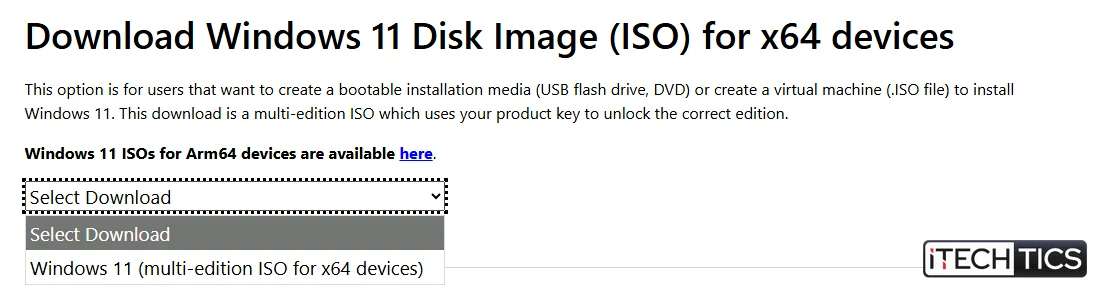
- Under Download Windows 11 Disk Image (ISO) for x64 devices, open the Select Download list, choose Windows 11 (multi-edition ISO for x64 devices) and select Confirm.
- Choose a product language and select Confirm.
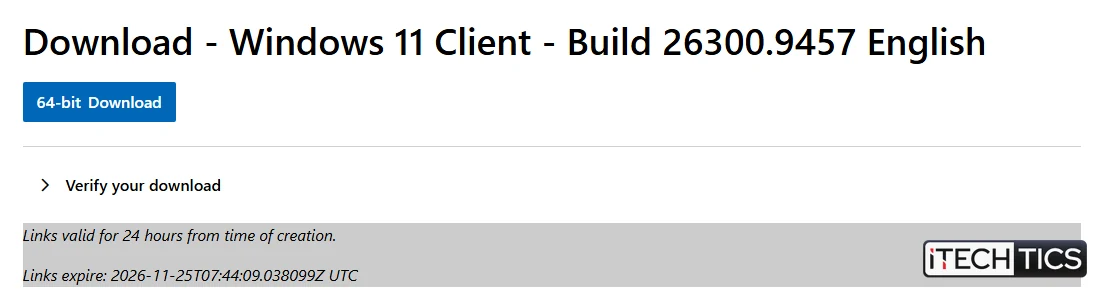
- Select 64-bit Download. The link Microsoft generates is valid for 24 hours.
Arm64 ISO (Snapdragon and other Arm PCs)
Use the separate Download Windows 11 Arm64 page. The steps are the same, but this page has no Installation Assistant or Media Creation Tool, only the ISO. To check whether a PC is Arm-based, open Settings > System > About and look at System type. You can’t install the Arm64 ISO on an x64 PC, or the x64 ISO on an Arm PC.
ISO file names and sizes
| Image | File name (English, US) | Approximate size | Build |
|---|---|---|---|
| x64 multi-edition (consumer) | Windows11_Client_x64_en-us_26300_9457.iso | 8.4 GB (9,047,330,816 bytes) | 26300.9457 |
| Arm64 multi-edition (consumer) | Windows11_Client_arm64_en-us_26300_9457.iso | About 7.9 GB | 26300.9457 |
| x64 Enterprise evaluation | 26300.9457.260913-1737.26h2_ge_release_svc_refresh_CLIENTENTERPRISEEVAL_OEMRET_x64FRE_en-us.iso | Shown on the Evaluation Center page | 26300.9457 |
Microsoft has changed the naming pattern: 25H2 images were called Win11_25H2_English_x64.iso, and the 26H2 images now include the architecture, locale and build. The ISO is noticeably larger than older Windows 11 images. Plan for a USB drive of at least 8 GB (Microsoft’s minimum), and 16 GB is safer. The eval file name comes from the target of Microsoft’s Evaluation Center link, checked on November 12, 2026.
Languages
The x64 and Arm64 ISOs come in the same 38 languages: Arabic, Brazilian Portuguese, Bulgarian, Chinese (Simplified), Chinese (Traditional), Croatian, Czech, Danish, Dutch, English (United States), English International, Estonian, Finnish, French, French Canadian, German, Greek, Hebrew, Hungarian, Italian, Japanese, Korean, Latvian, Lithuanian, Norwegian, Polish, Portuguese, Romanian, Russian, Serbian Latin, Slovak, Slovenian, Spanish, Spanish (Mexico), Swedish, Thai, Turkish and Ukrainian. Pick the language you want Setup and the first sign-in to use. You can add other display languages afterwards in Settings > Time & language > Language & region, except on Home Single Language. To build install media with extra languages already in it, see how to add language packs to a Windows 11 ISO.
Method 5: Media Creation Tool (bootable USB)
The Media Creation Tool downloads 26H2 and writes it straight to a USB drive, or saves an ISO. It’s x64 only.
- Under Create Windows 11 Installation Media on the download page, select Download Now and run
MediaCreationToolW11.exe. - Accept the license terms, then keep or change the language and edition.
- Choose USB flash drive (8 GB or larger, and everything on it is erased) or ISO file.
- Boot the target PC from the USB drive. The boot menu key is usually F12, F11, Esc or F8.
For Arm PCs, download the Arm64 ISO and write it to USB with a tool that supports Arm64 images. Rufus is a widely used free tool that can do this. Get it only from its official site, rufus.ie, and keep in mind that it’s third-party software Microsoft doesn’t support.
Method 6: Enterprise and Education ISOs
| Source | Who it’s for | What you get |
|---|---|---|
| Microsoft 365 admin center > Billing > Your products > Volume licensing > Downloads and keys | Volume licence customers. The Volume Licensing Service Center (VLSC) has been retired and its downloads moved here. | Business-editions media (Enterprise, Education, Pro and others) with KMS client setup keys |
| Visual Studio subscriptions | Developers and testers (dev and test use only) | Business and consumer editions media |
| Microsoft Evaluation Center | Anyone evaluating Enterprise | A 90-day Windows 11 Enterprise 26H2 evaluation (build 26300.9457, x64) in 11 languages. It can’t be converted to a licensed edition: when the evaluation ends, you reinstall. |
The Evaluation Center also lists an “Enterprise LTSC” ISO, but that link still downloads Windows 11 Enterprise LTSC 2024 (build 26100.1742). There is no 26H2 LTSC release (for the LTSC images, see our Windows 11 IoT Enterprise LTSC ISO guide). Microsoft’s release information lists 24H2 as the only Windows 11 LTSC version, with Enterprise LTSC 2024 supported until October 9, 2029 and IoT Enterprise LTSC 2024 until October 10, 2034.
Verify the ISO: official SHA-256 hashes
Microsoft publishes a SHA-256 hash for every 26H2 ISO on its download pages, under “Verify your download”. Compare yours before you install. A mismatch means the file is corrupted or isn’t Microsoft’s. In PowerShell, run:
Get-FileHash -Path "$env:USERPROFILE\Downloads\Windows11_Client_x64_en-us_26300_9457.iso" -Algorithm SHA256The Hash value it returns must match the table exactly (case doesn’t matter). The hashes below are copied from Microsoft’s x64 and Arm64 download pages on November 12, 2026, when both pages showed version 26H2. Microsoft refreshes the ISOs from time to time, so if your hash doesn’t match, compare it with the table on Microsoft’s page first.
| Language | x64 ISO SHA-256 | Arm64 ISO SHA-256 |
|---|---|---|
| English (United States) | BD4307DF32BC8AF33B39CCECB1174AEB345386630F89A2B86C7A4E36B55EA650 | 8992F2D2CFD2FA647E579E9EB31FC21F34DA8333C29B6170FDE17D2ED6623E9C |
| English International | 7E3F373BD3C2321B5D5125DFCF718DFBF1A0ABC50A267118669951890DF98A5D | 500BCB6F272B7C455156470EA06816F558F13B885723F84EE9EAB7534C7DEE61 |
| Arabic | A75AE3F36CB9FFFFEDCB2D7DED9CEF83FFB710EB1376610D2220684D987CB9A5 | 92775CAD76E5B90B6BC0D2F7ADA982B5E399CBB59BFA797320872016927848DD |
| Brazilian Portuguese | D9AC87C1E9E47E0EB34EED443E5691C31781074E67608A51AEE50D7C7039F684 | 48EEC10EAFF055A62A1516CE83E103DFDBE72A4AAF12A221E99ECB29CAA3FB77 |
| Bulgarian | FE219A43A408534FB79B170925E750289DE0D80CA52D297B0977DCF5E71B6D87 | A56988DAE9BE80F1D5737E5F5066260110ED175B02F5ED849CA5BAA99321CC1B |
| Chinese (Simplified) | B795B52D598BF8FDEA5975844731F4A50C5713876CEFC513884354272B023AF0 | CD573DF724862300895D0F5D0836E663756D22CC4E964C752EFDC05B4FC09E8B |
| Chinese (Traditional) | E951AB4EAD95D45E00CDFF6C9C05836F9499D3FD2FDEEAE0E709549F12F9B5DC | C0486202732B8D91918FF83E014D52D936A37CAC65B80F5B34023AA188F25C6E |
| Croatian | 3874FB17B092E6470D5B5F0175BBB69B228619ABA5DA1612905F6960A2F9EAF6 | 78B7388EA549C3440CC48C7C427CB1C118EC40408A914B6A98D4684C6DEE138E |
| Czech | 9C616600B6845DBD24EB705E35D0EEC4311D0F6A88A35CB2B134FA487244796A | A299C5B56A5FE93996F4C4EBD390338E00C1208E94F04F14085DC05FEC262F06 |
| Danish | C03816ABF43F868381C3AAF9940E8FB33CB54D244A88E182BFBD1F887F1D74C9 | 0DF64FA738E25BEACDF844D9B74DAC7F67345F5003B23787F6AE87E3451BFBF1 |
| Dutch | 34B3FD033F10560F48366940768AEA5AD5198407BEC3E2EEB9BD730A80D39F26 | 554267A82102284894E874625C6E8C5FDE0850C9A998D16DC25DB968B9B2D575 |
| Estonian | 2CD0558801F831D0315897BA5C989B9A8192BC975F4E8D5F0C4E51EA0817196B | F2B835D2894AFE3160B53F2CFC58DAED95DAB80D677596F0A69544FBAE17DD05 |
| Finnish | 32B9D11B13E1A200ED7C08D2E495C4B57C6B38150C8DFC679C5E80BC7A5F8767 | 0BF586CF3DE2D8ABDFC998B5A5270F3F5BC9586F7342AAB7B0E3D1C212AE730B |
| French | AA515279F02FB2B425EFF341F0A1F158D61288C72CCA5F9D87B79B5A23F7F918 | D086FB0BC1574188E8533A7422B55A3FE3BC39D0E48DA0E895DEC3F370E472DF |
| French Canadian | F32E5538EE3F73206294378109501C9E2E2DA78DCDE66C43F4610B18CEEBC0A7 | 595A083F8B63EFEC1FC2CD5E7875D88C1C7E71D7B34369C3BC359E8A7CE666BF |
| German | 193BBDE65EC84E298A1C798959489C8375ED501CF973C6D37FA52BB22EE8D43B | 10CB224A54AEE8022ED250DA75B00CC8E614B0336D975100A0F80DBBC38ECDC2 |
| Greek | 40BE4F83598455D8606D442B740AA2942740BC9F6104ADC5D7320651D61DCBC0 | 390042887EE2FBE34AC831C64E71D9057EB82CD98F989AC585ECF719E7F27F1B |
| Hebrew | 6458F3C2458790E0D78436574894F39B455924E83937E7C166D656730C441D29 | BBF9F2284FE7559EA8BDF960851A80231EADA3AA7E740958948B79AB01D23478 |
| Hungarian | 614ACD776E654B26255F0CFCFAC509217E6F98B6FE949FA478AB5514A7697B5F | C511B047920A571E5D58D983E5EA3CC6811E20BB9CD6D255B73E85DA88FD5BAB |
| Italian | 4A155CFF6748F433B017761FF0B5B6029878EC6EF267674418D65E0FED7D0520 | DE651996AF788D7F55B8D11BFA45D5B20E22013687EA2C37F3325A8CD4D7C5E5 |
| Japanese | 923EC1A2EC46CCBE607FC81BEAF9753BFBB6FC62220B7B8BFFD56E66F6DE3A0C | 8618E995C48FB6BB4D32C8CDF0E4B280473640736071C53943789F93A03BDD51 |
| Korean | EC4C80AA16C1910562EA8EEA82B86CCF2012375E0492B180178BB605DE308292 | 833E132E94335A7EECC2B3BB6BA9E16B199413504049CC19743752F402FB9CF7 |
| Latvian | 91E8ED6BA3DBFAB3CBE9977C5484572759D57ECBE8B25B7A9E208A4F1594AB7E | 94ABA682D5D3A1CBA7F7A096A0E2A2B7A203513E75DD184AC4DAF3A36B36F273 |
| Lithuanian | C66F9D4A83E334E528180534E13BE58CAC052E1621408B065BF242E2977A8769 | 635899EA6901E7C9CE1C42E629D2E6DAAFF71128ED9D03C63B7DC0999805D613 |
| Norwegian | 1802913B75B2CF54AB7CCC0A01426C6B5C94BA144A4777DBF37A67CEEB071B25 | 2C85AD913811599893B510A8278BD64CD6A0C1E1238582A57CC81FB28F7A76A3 |
| Polish | 0EADDDD47A6D6D4524DF40CBD9B779C32DF222F7D2000DE2B82A000CA9C5470F | 6D9B301E9009FE9191A75DC537CE7D648649C3F991511105A89822BC19AED933 |
| Portuguese | 62C0C3B067C9ADAC99DDBD8A98EEF6C7A51D5FFCCC3D97BD02DACCF1D6DFEDB9 | 8F9E526B24BDB89C4EE6BB550D8E42FEE08FD9F657E4941A8F89FEA77CA9BE17 |
| Romanian | F29EB5D997A7822AD8E7D6AF2B9D23C9484AC86BDFD17F61CB287797CDA66B13 | DEBA3AA801C8EB6C6D354D124A62A4CE8F7C1E52D0C081FD132D0FA5E9017A0E |
| Russian | 3DD71E8F84BFDC0054E1C4383DB2EAC921D21952AC03B2231CB6E9610A2F7423 | 311879B09B0A990082BF4E47A1533BF994BC5379D9A41E4D386E5202DF2719A1 |
| Serbian Latin | AA646F5C7E9D2B78208154F21A8EC2A18E7B72998B6F2C022B5FFBBB305EBFA5 | E9994BBD05440CD2FA2DB846710119CF33A5AA2AFD4FF71834D22A52CAB5FFA6 |
| Slovak | ED796F19C1B2FC0912F4BC3BFE854425C760FB08946D4EE88BC1C3FAB1D1862B | 7FE3233A5162BD73F38FF378B824CA466A949354002D09FE47AA9AEE2AB67D10 |
| Slovenian | 4702A4052A3E2ECFF5665F84E766EF4CB4A660C712427A8BA083B121840E6D6A | 2178F38D5571B706770C932399F8A6139B58EDB537872A0D9973CE7297A9EB6D |
| Spanish | 9828703784880421E6602504DFD99064E4CB739CC9B20ABA22E3934372A14F9A | DBF606CEB4CE1390F9F21AD1D96331848BC6B701CBAB0012785881A1A1C0EC63 |
| Spanish (Mexico) | 83231BCD4C509CFA51EB9A79056C6F1CA40DF09110267832E780A881B9EE8F9E | 23D5D42E8CD37FE1BACC37920EAA1AB0BB044AAE0D41EEEB6A77E82A8CA9A483 |
| Swedish | D0E4704500012ACF3551B6C394503638D21C4F1E58B410E7F8FA5D8D61BF3B8B | 0D706BC138C9CD287C30D316FE9E623C5F700D085C430CB5329C8C4A1745E9BF |
| Thai | 127DCC66ED7C1A797863FD3573EF5F2F17BDECB72425E74B7AA5186F50FADA4A | 768E8CE3BC0A5FE1D8102063791F056D52D073D2C3F1A6D47C40C5DC9F5F6560 |
| Turkish | 6BE8412702B2C56099A98FD8FD058FFB869DC54035FC54A3BDFCE99ABB631FAF | 13EEAB6C3DF650A8A219C2266F0768BA8583F8EEDE5D62EEBF2CAEE641CE747E |
| Ukrainian | 2C2C6889E47273690842F8867539D204D3814820E235C520BF63A6140D7CEFE3 | 99B00684F0FFF80C64E305A5559D6BF30356B17303BD8E7FFB379CDE9E7D23E7 |
Editions inside the 26H2 ISO
To list the editions in your ISO, mount it (right-click > Mount), note the drive letter, and run this in an elevated Command Prompt. Use install.esd in place of install.wim if that’s the file in sources.
dism /Get-WimInfo /WimFile:E:\sources\install.wimPowerShell equivalent: Get-WindowsImage -ImagePath E:\sources\install.wim. The indexes matter if you script an install with dism /Apply-Image or pick an edition in an answer file.
| Index | Edition | Edition ID |
|---|---|---|
| 1 | Windows 11 Home | Core |
| 2 | Windows 11 Home N | CoreN |
| 3 | Windows 11 Home Single Language | CoreSingleLanguage |
| 4 | Windows 11 Education | Education |
| 5 | Windows 11 Education N | EducationN |
| 6 | Windows 11 Pro | Professional |
| 7 | Windows 11 Pro N | ProfessionalN |
| 8 | Windows 11 Pro Education | ProfessionalEducation |
| 9 | Windows 11 Pro Education N | ProfessionalEducationN |
| 10 | Windows 11 Pro for Workstations | ProfessionalWorkstation |
| 11 | Windows 11 Pro N for Workstations | ProfessionalWorkstationN |
We checked the en-US x64 ISO: sources\install.wim (7.6 GB) holds these 11 editions in this order. Home Single Language is locked to the language of the ISO. The N editions leave out media features such as Windows Media Player. Enterprise isn’t in the consumer ISO: it comes from business media or as an upgrade from Pro with an Enterprise licence.
Windows 11 26H2 system requirements
26H2 doesn’t change the Windows 11 hardware requirements. To test a PC, see how to check all requirements for Windows 11, and how to check and enable Secure Boot and TPM 2.0.
| Component | Requirement |
|---|---|
| Processor | 1 GHz or faster, 2 or more cores, a compatible 64-bit processor or system on a chip (SoC), from Microsoft’s supported CPU lists. The CPU must support SSE4.2 and POPCNT. |
| RAM | 4 GB |
| Storage | 64 GB or larger |
| Firmware | UEFI, Secure Boot capable |
| TPM | Trusted Platform Module 2.0 |
| Graphics | DirectX 12 compatible with a WDDM 2.0 driver |
| Display | 720p, larger than 9 inches diagonal, 8 bits per color channel |
| Setup | Internet connection and a Microsoft account to finish setup on Home (and on Pro for personal use) |
Microsoft hasn’t published a 26H2-specific CPU list. Use the current Intel, AMD and Qualcomm lists. In practice that means Intel 8th Gen or newer and AMD Ryzen 2000 or newer. Microsoft’s processor lists still weren’t split by version on November 24, 2026. Source: Windows 11 specifications.
One 26H2 change can affect old hardware: Windows no longer trusts cross-signed kernel drivers by default. Only drivers signed through the Windows Hardware Compatibility Program, plus an allow list of legacy drivers, still load. Windows audits driver compatibility for at least 100 hours and three restarts before it enforces the rule. Very old printer, scanner or capture-card drivers are the most likely to break. Source: What’s new in Windows 11, version 26H2.
Installing 26H2 on unsupported hardware
Microsoft’s download pages warn that a PC which doesn’t meet the requirements “will no longer be supported” and isn’t entitled to receive updates, and that damage caused by incompatibility isn’t covered by the manufacturer’s warranty. Keep that in mind before you go further.
- The registry value Microsoft used to document. In 2021 Microsoft published a registry value that let Setup skip the CPU check and accept TPM 1.2:
AllowUpgradesWithUnsupportedTPMOrCPU(DWORD, set to1) underHKEY_LOCAL_MACHINE\SYSTEM\Setup\MoSetup. It only applies to an in-place upgrade run from setup.exe, and the PC still needs at least TPM 1.2 and Secure Boot support. Microsoft has since removed these instructions from its Ways to install Windows 11 page, so treat the value as unsupported. We haven’t tested it with 26H2. - Rufus. When it writes the ISO to USB, Rufus (official site only) can make media that skips the TPM, Secure Boot and RAM checks. It’s third-party software. Use it only on spare hardware you accept may lose updates. Our guide to creating a Windows 11 ISO that skips the requirement checks walks through it.
- Already on 25H2 on unsupported hardware? Windows Update doesn’t offer feature updates to these PCs. An in-place upgrade from the 26H2 ISO has to get past the same compatibility check.
We don’t link to modified ISOs, “lite” builds or ISO mirrors. Every method on this page uses Microsoft’s own files.
Clean install, in-place upgrade or enablement package?
| Enablement package | In-place upgrade (setup.exe) | Clean install (USB) | |
|---|---|---|---|
| Works from | 24H2, 25H2 | Windows 10 2004 and later, any Windows 11 version except 26H1 | Anything (wipes the drive) |
| Keeps apps and files | Yes | Yes (or files only) | No |
| Time | Minutes, 1 restart | 30 to 90 minutes, several restarts | 20 to 45 minutes plus setup |
| Rollback | Yes, within 10 days | Yes, within 10 days | No |
| Fixes a broken install | No | Often (repair upgrade) | Yes |
| Best for | Almost everyone on 24H2 or 25H2 | Windows 10, 23H2, offline PCs, repairs | New drives, VMs, a fresh start |
In-place upgrade from the ISO
- Right-click the ISO and select Mount.
- Run
setup.exefrom the mounted drive. To install without downloading Setup updates first, select Change how Setup downloads updates > Not right now > Next. - Accept the license terms and wait for the checks to finish.
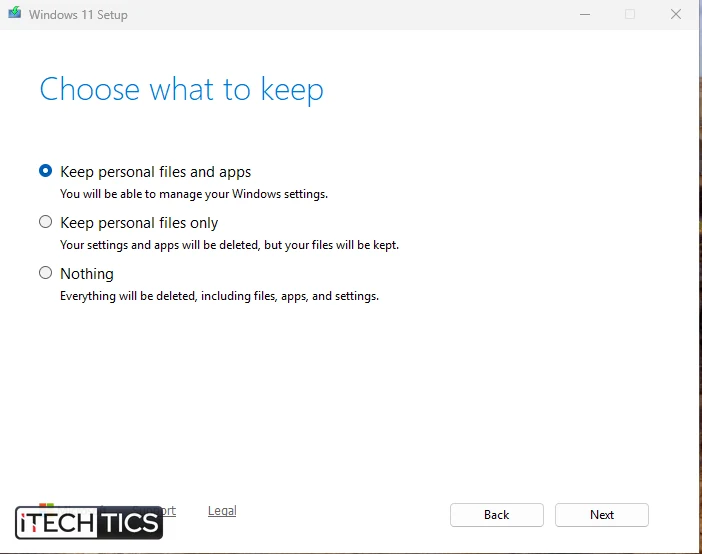
- On Ready to install, check that it says Keep personal files and apps. It’s the default. To change it, select Change what to keep. Then select Install.
- Let Setup finish. It restarts several times.
Clean install from USB
- Boot from the USB drive and choose your language and keyboard.
- Select Install Windows 11. Enter a product key, or select I don’t have a product key if the PC already has a digital license.
- Pick the edition your license covers, accept the terms, delete the old partitions on the target disk, and install.
- Once you reach the desktop, run Windows Update right away. The ISO is build 26300.9457, which is several monthly updates behind 26300.9974.
Windows 11 26H2 build and KB history
Every 26H2 release since launch. The same monthly package also services 24H2 (26100.x) and 25H2 (26200.x) with the same revision number, so a 25H2 PC on 26200.9974 is fully patched too.
| Date | Type | KB | 26H2 build | Notes |
|---|---|---|---|---|
| November 19, 2026 | Optional preview (D) | KB5132057 | 26300.10075 | Gradual rollout of a redesigned Windows Search with inline actions and file previews, a new Run dialog (opt-in under Settings > System > Advanced), and Windows Hello face sign-in that brightens the screen in dark rooms |
| November 10, 2026 | Security (B) | KB5132061 | 26300.9974 | Fixes USB Audio Class 1.0 devices failing with Code 10, and error 87 when adding AD-published printers. NTLM signing is now offered by default. Bundled servicing stack KB5132688. |
| October 28, 2026 | Optional preview (D) | KB5127936 | 26300.9818 | Fixes the Remote Desktop error 0xC000000D with Administrator protection |
| October 26, 2026 | Out-of-band | KB5134133 | 26300.9725 | Updated trusted root certificates for devices that don’t receive certificate trust list updates |
| October 13, 2026 | Security (B), the first Patch Tuesday for 26H2 | KB5127648 | 26300.9711 | Fixes the AVD/FSLogix black screen and AC-3 audio app crashes |
| September 29, 2026 (26H2); September 22 for 24H2 and 25H2 | Optional preview (D) | KB5124010 | 26300.9550 | The minimum update for the enablement package. Disables Machine Identity Isolation enforcement. |
| September 29, 2026 | Launch build | KB5129195 baseline | 26300.9457 | The build in the ISOs and Evaluation Center media |
Next expected release: the December security update on December 8, 2026 (Patch Tuesday). Optional previews such as KB5132057 aren’t installed automatically: you get them only if you select Download and install or turn on Get the latest updates as soon as they’re available.
Why some 26H2 PCs started on .9457 and others on .9550: Microsoft lists 26300.9457 as the launch build, and that’s the build in the ISOs. PCs that already had the optional September 22 update when they switched over through Windows Update came up on 26300.9550. Both are 26H2.
For IT admins servicing their own media: the Catalog has 26H2 Dynamic Updates. The latest are the November Safe OS update KB5132060 and the October 28 Setup update KB5128977. The standalone cumulative update KB5132061 is listed at 5,020.7 MB for x64 and 4,845.5 MB for Arm64. Windows Update downloads much less, because it only fetches what a device is missing. Source: Microsoft Update Catalog, searched November 12, 2026.
Sources: Windows 11 release information, Windows 11, version 26H2 update history. To see how far behind a PC is, enter its build number in our Windows build checker.
What’s new in Windows 11 26H2
Most 26H2 features reached 24H2 and 25H2 PCs through monthly updates during the year. The enablement package turns on the rest and resets the support clock. The changes Microsoft lists for 26H2:
- On by default for organizations: Windows settings backup, app-specific actions on the taskbar, and several File Explorer improvements that were previously held back on managed PCs.
- Security: Administrator protection (just-in-time admin rights, off by default), built-in Sysmon (off by default), Smart App Control can be switched on or off without a reinstall, third-party passkey managers, Enhanced Sign-in Security for external fingerprint readers, removal of default trust for cross-signed drivers, and APIs for the ML-KEM and ML-DSA post-quantum algorithms.
- Recovery: point-in-time restore for Windows, and quick machine recovery with automatic remediation scans.
- Interface: a redesigned Start menu with category and grid views, a taskbar you can move to the top or sides, a smaller taskbar option, previews in Windows Search, and new archive formats in File Explorer.
- Devices: Multi-App Camera, better Bluetooth LE Audio, and more reliable USB4 docks.
- Windows Update: fewer restarts, because eligible updates install together with the monthly security update.
- Admin: NPU columns in Task Manager, a safer batch-file processing mode, and policy-based removal of preinstalled Store apps.
- Removed: WMIC is gone and isn’t available as a Feature on Demand. Move scripts to PowerShell CIM cmdlets such as
Get-CimInstance. Optional features may still offer WMIC, and the install even reports success, but no wmic.exe is added: in our test the install took about 25 minutes and the command still wasn’t recognized afterwards. Don’t spend time on it. Our WMIC alternatives guide maps common WMIC commands to PowerShell.
What we saw on a clean 26H2 install
We installed 26H2 from the ISO in a virtual machine (Windows 11 Pro, Secure Boot and TPM 2.0) and updated it to build 26300.9974. A clean Pro install used 25.9 GB of disk and came with 107 preinstalled app packages before any updates.
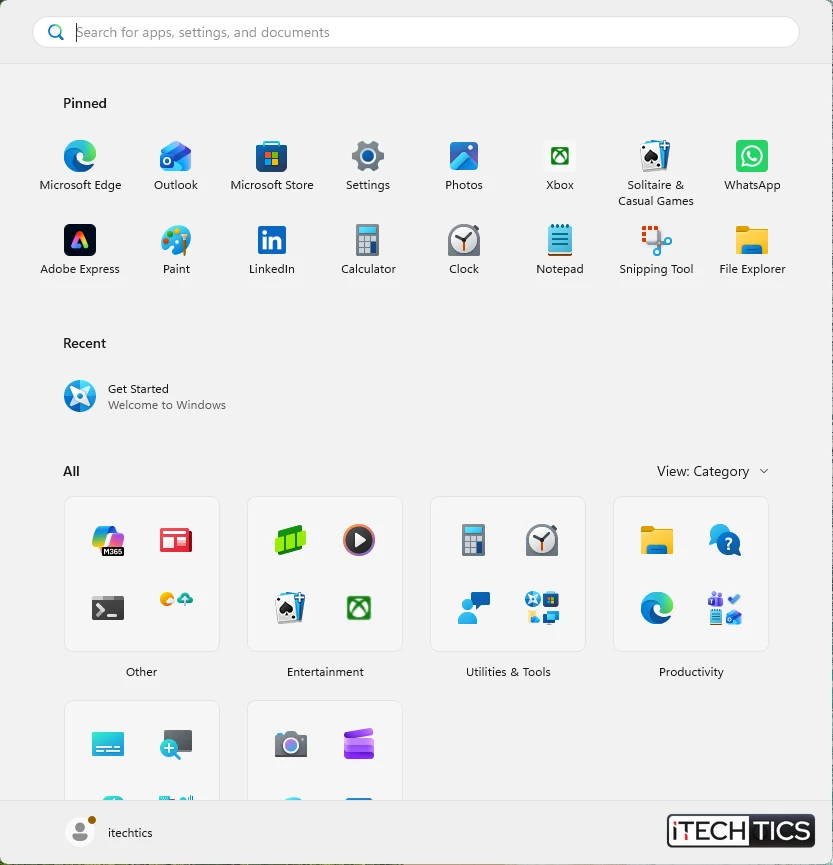
Start menu: All apps now sit under Pinned and Recent, and you can switch the view to Category (groups such as Productivity, Utilities & Tools and Entertainment) or grid.
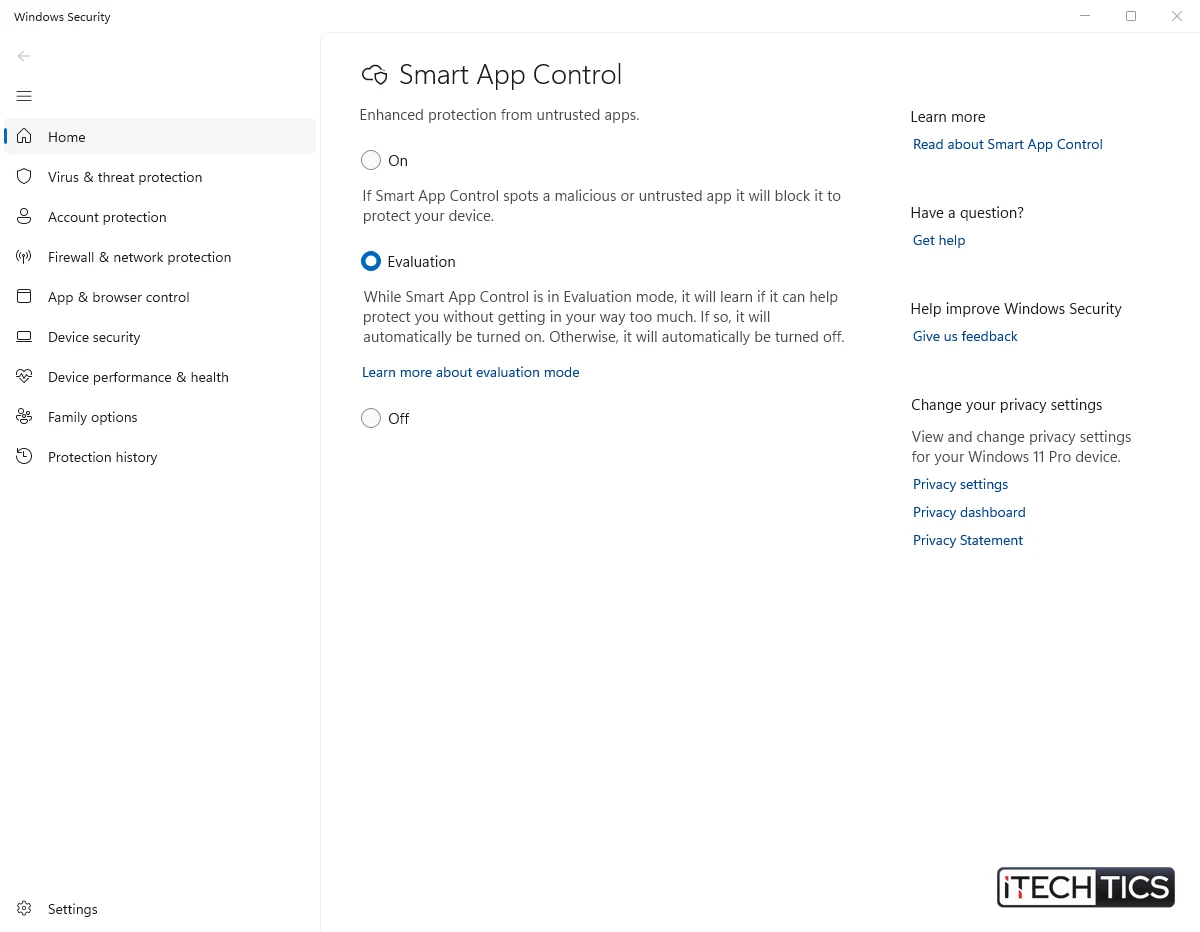
Smart App Control: Windows Security > App & browser control > Smart App Control now offers On, Evaluation and Off. A clean install starts in Evaluation.
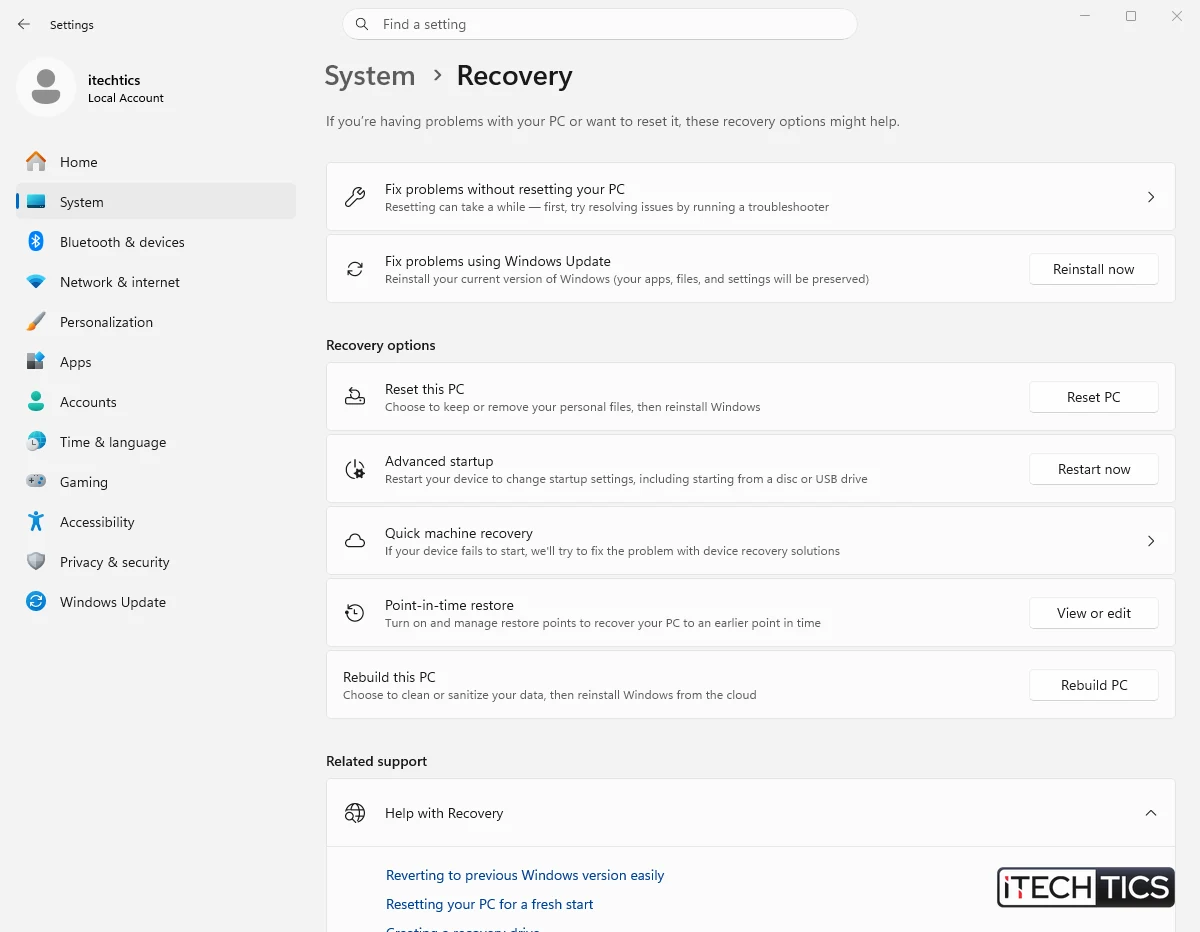
Recovery: point-in-time restore and quick machine recovery are both in Settings > System > Recovery. After the November update (KB5132061), the same page also gained Rebuild this PC, which reinstalls Windows from the cloud after cleaning or sanitizing your data. It wasn’t there on the ISO build (26300.9457).
Taskbar position: the setting is in Settings > Personalization > Taskbar > Taskbar behaviors (bottom, top, left or right). Like other personalization settings, it’s greyed out until Windows is activated.
Built-in Sysmon is off by default, and turning it on takes two steps in an elevated PowerShell window. The first command only adds sysmon.exe. The second installs and starts the Sysmon service and driver. No restart was needed in our test.
Enable-WindowsOptionalFeature -Online -FeatureName Sysmon -All
sysmon -i -accepteula
Events then appear in Event Viewer under Applications and Services Logs > Microsoft > Windows > Sysmon > Operational. Administrator protection was off on our clean install, as Microsoft says.
Source: What’s new in Windows 11, version 26H2 for IT pros.
Known issues and safeguard holds
| Issue | Who it affects | Status |
|---|---|---|
| SQL Server linked server connections stay open and pile up (Oracle and PostgreSQL among those affected) | Servers running SQL Server linked server queries through OLE DB providers, after the October 13 update (KB5127648) or later | Open (confirmed November 11). Mitigation through Microsoft Support for business; fix planned for a future update |
| USB Audio Class 1.0 devices show Code 10 or produce no sound | Some USB headsets, DACs and mixers | Resolved in KB5132061 (November 10) |
| Remote Desktop error 0xC000000D for non-admin users | RDP hosts with Administrator protection enabled | Resolved in KB5127936 (October 28) |
| Black screen after sign-in | Mainly Azure Virtual Desktop with FSLogix | Resolved in KB5127648 (October 13) |
| Apps that use AC-3 (Dolby Digital) decoding close unexpectedly | Mostly older games and media players | Resolved in KB5127648 (October 13) |
| Domain trust lost on Credential Guard protected machine accounts | Domain-joined PCs with Machine Identity Isolation and no Windows Server 2025 domain controllers | Resolved in KB5124010 (September 22) |
As of November 24, 2026, Microsoft lists one open issue for 26H2, the SQL Server one, which affects server workloads rather than typical home and office PCs. Source: Windows 11, version 26H2 known issues.
Windows 11 26H2 support dates
Windows 11 versions and support dates
| Version | Active support | Security updates | Status |
|---|---|---|---|
| Windows 11 26H2 | — | 10 Oct 2028 | Supported1 yr 10 mo left |
| Windows 11 26H2 | — | 9 Oct 2029 | Supported2 yr 10 mo left |
| Windows 11 26H1 | — | 14 Mar 2028 | Supported1 yr 3 mo left |
| Windows 11 26H1 | — | 13 Mar 2029 | Supported2 yr 3 mo left |
| Windows 11 25H2 | — | 10 Oct 2028 | Supported1 yr 10 mo left |
| Windows 11 25H2 | — | 12 Oct 2027 | Ending within a year10 mo left |
| Windows 11 24H2 LTSC | — | 9 Oct 2029 | Supported2 yr 10 mo left |
| Windows 11 24H2 IoT LTSC | 9 Oct 2029 | 10 Oct 2034 | Supported7 yr 10 mo left |
| Windows 11 24H2 | — | 12 Oct 2027 | Ending within a year10 mo left |
| Windows 11 24H2 | — | 13 Oct 2026 | Unsupported |
| Windows 11 23H2 | — | 10 Nov 2026 | Unsupported |
| Windows 11 23H2 | — | 11 Nov 2025 | Unsupported |
| Windows 11 22H2 | — | 8 Oct 2024 | Unsupported |
| Windows 11 22H2 | — | 14 Oct 2025 | Unsupported |
| Windows 11 21H2 | — | 8 Oct 2024 | Unsupported |
| Windows 11 21H2 | — | 10 Oct 2023 | Unsupported |
Showing 16 of 16 versions · statuses as of 24 Nov 2026
Support timeline
Installing 26H2 gives Home and Pro two more years of updates, and Enterprise and Education three. That’s the main reason to upgrade even though the visible changes are small. See every Windows 11 version on our Windows 11 end-of-life dates page.
How to check that you’re on 26H2
- Press Win + R, type
winver, and press Enter. You should see Version 26H2 (OS Build 26300.xxxx). - Or run this in PowerShell:
Get-ItemProperty 'HKLM:\SOFTWARE\Microsoft\Windows NT\CurrentVersion' | Select-Object DisplayVersion, CurrentBuild, UBRIt should show DisplayVersion
26H2, CurrentBuild26300and the revision number (UBR), for example9974.
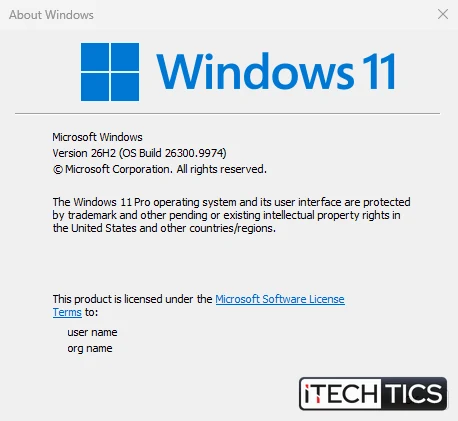
Build 26200 means 25H2 and 26100 means 24H2. Enter your full build in the Windows build checker to see whether it’s current.
Which Windows 11 version am I running?
Run one of these commands, then paste the build number below.
Roll back to 25H2 or 24H2
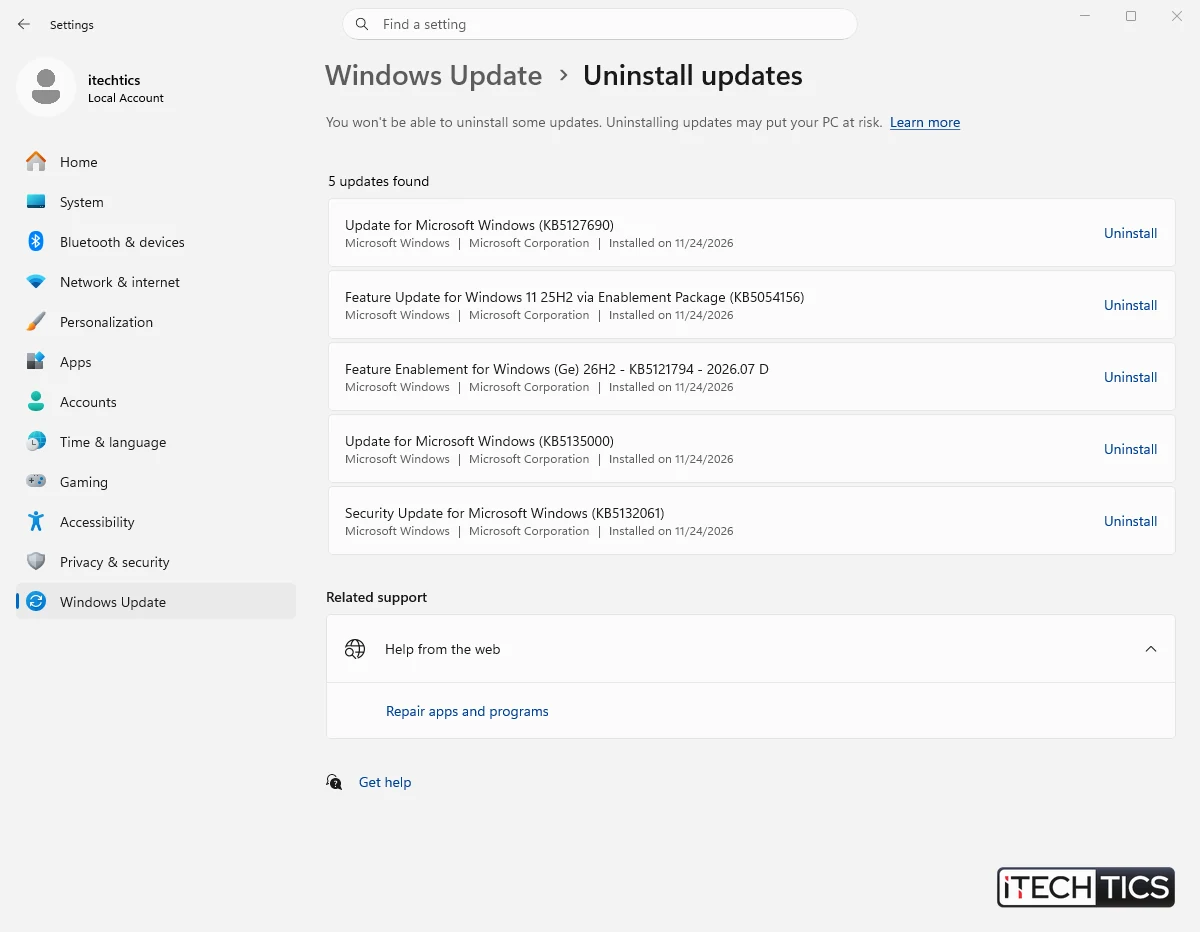
How you go back depends on how you got 26H2. After the enablement package (Windows Update on 24H2 or 25H2, or KB5121794 by hand), there is no Go back button. Open Settings > Windows Update > Update history > Uninstall updates, find Feature Enablement for Windows (Ge) 26H2 – KB5121794, select Uninstall, and restart. This doesn’t rely on the 10-day Go back window, because the 25H2 files never left the disk.
After a full upgrade from the ISO or the Installation Assistant, you can go back from Settings > System > Recovery > Go back for 10 days. After a clean install there’s nothing to go back to.
After a full upgrade only, you can keep the option longer by extending the window before the 10 days run out (60 days at most). On a PC that got 26H2 through the enablement package, these commands fail with error 1168 (Element not found).
DISM /Online /Get-OSUninstallWindow
DISM /Online /Set-OSUninstallWindow /Value:60Frequently asked questions
Is Windows 11 26H2 free?
Yes. It’s a free update for any PC with a Windows 11 license, and a free upgrade for eligible Windows 10 PCs with a genuine license. The ISO download is free too. You only need a product key if the PC has no digital license.
Can I upgrade from Windows 10 to Windows 11 26H2?
Yes, if the PC meets the Windows 11 requirements. Use the Installation Assistant or run setup.exe from the 26H2 ISO. The enablement package doesn’t apply to Windows 10. The free year of consumer Extended Security Updates for Windows 10 ended on October 13, 2026.
Can a Windows 11 26H1 PC get 26H2?
No. 26H1 is built on a different Windows core (build 28000) for new Arm devices released in 2026, and Microsoft doesn’t offer 26H2 to it. 26H1 Home and Pro are supported until March 14, 2028.
What’s the difference between 25H2 and 26H2?
They share the same code base. 26H2 is build 26300 and 25H2 is 26200. 26H2 turns on the features delivered during 2026, removes WMIC, stops trusting cross-signed drivers by default, and restarts the support clock: October 2028 for Home and Pro, compared with October 2027 for 25H2. Details for the older release are in our Windows 11 25H2 download guide.
When will Windows Update offer me 26H2?
Now, if the PC runs 24H2 or 25H2 with a current monthly update and has no safeguard hold. Microsoft marked 26H2 as available to all eligible devices on October 28, 2026. Turn on “Get the latest updates as soon as they’re available” to get it right away.
Which ISO do I need for a Snapdragon laptop?
The Arm64 ISO from Microsoft’s Windows 11 Arm64 download page. The Media Creation Tool and the Installation Assistant only work with x64 PCs. If your Snapdragon PC shipped with 26H1, don’t install 26H2 over it.
Is there a Windows 11 26H2 LTSC?
No. The current Long-Term Servicing Channel release is Windows 11 Enterprise LTSC 2024, based on 24H2.
How big is the Windows 11 26H2 download?
The enablement package is under 200 KB once the PC has a current monthly update. The x64 ISO is about 8.4 GB and the Arm64 ISO about 7.9 GB. A full upgrade through the Installation Assistant downloads several GB.
Final takeaway
If you’re on Windows 11 24H2 or 25H2, don’t download anything: turn on the Windows Update toggle and install 26H2 in one restart. This matters most on 24H2 Home and Pro, which no longer get security updates. Use the ISO for Windows 10 upgrades, clean installs, VMs and offline PCs, take it only from microsoft.com, and check it against the SHA-256 hashes above before you install. After any install from media, run Windows Update to go from build 26300.9457 to the current 26300.9974 (or 26300.10075 if you take the optional preview).